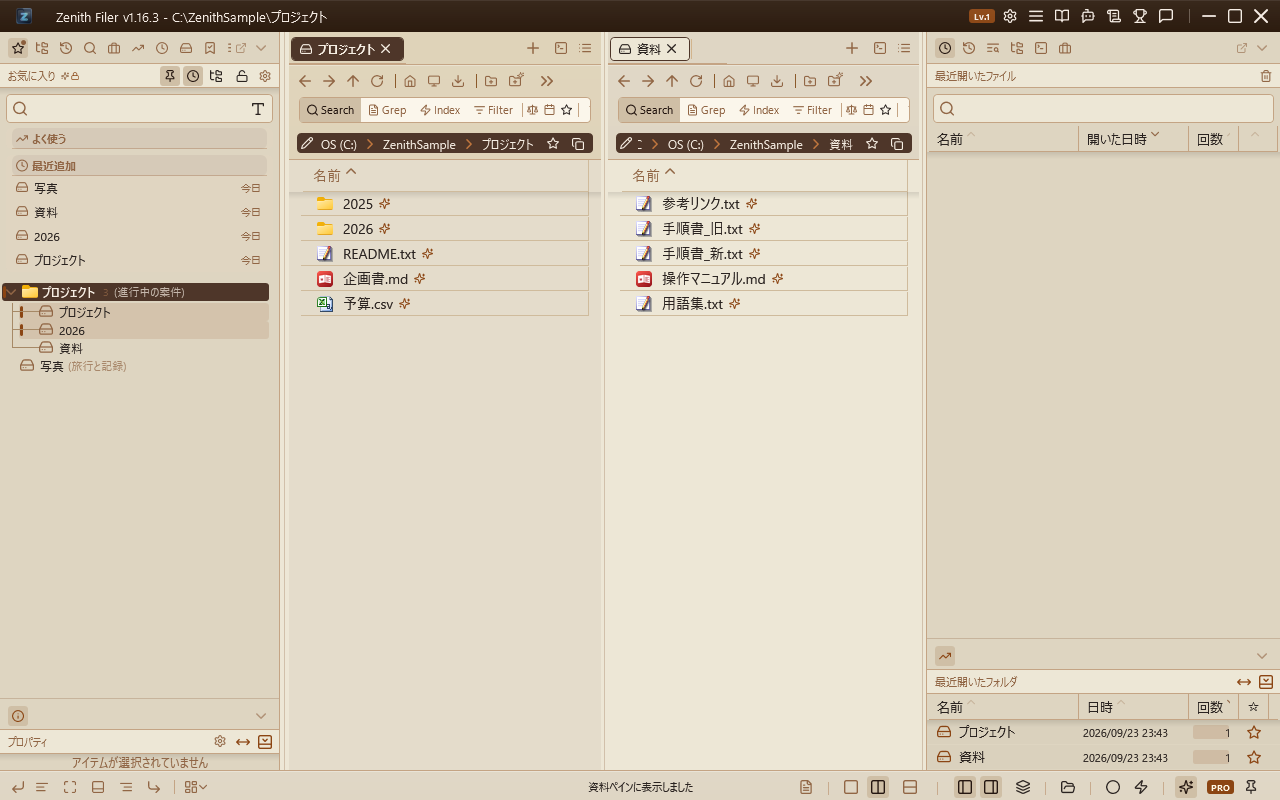
About Zenith Filer
Zenith Filer is a dual-pane tabbed file explorer for Windows, designed for efficient file operations. It maintains an intuitive feel similar to the standard Explorer while offering advanced customization features for power users.
How to use this manual: The manual is split into one article per feature. Pick a category and an article in the table of contents on the left to open it, then click one of the headings listed under the article to jump straight there. The search box at the top searches every article at once and shows how many matches each article has.
First launch: After a short setup (language / theme / keymap / license agreement), a "First 5 steps" card appears at the bottom right of the main window. It lists "Open a folder and get where you need to be", "Move files by drag and drop", "Add a folder you often visit to Favorites", "Try the Ring Launcher" and "Find anything in the Command Palette", and each one checks itself off when you actually do it. Nothing is locked, so you can keep using the app as usual. "Show me" on each row briefly highlights where to do it. When all five are done, a small celebration plays and the card folds away. The buttons at the top right collapse or close the card, and if you quit halfway it picks up where you left off next time. To bring it back after closing it, or to start over, use Control Deck > General > Show "First 5 steps".
First launch after an update: A card summarises what changed in that version — the version number and its one-line summary at the top, then every change in that version grouped under Added, Changed and Fixed, one line each, with a count beside each heading. A long list scrolls inside the card, which never grows past the edge of the screen. If you skipped a few versions, the newest is shown in detail and the ones in between get a line each. "View details" opens the full history. Close it with
Esc, a click outside, or the Close button; ticking "Don't show this again" stops it for good. Control Deck > General > Show what's new on startup brings it back, and "Show now" on the same page replays it at any time. It is not shown on a first-ever launch.