Size and Date Filters
Size Filter Details
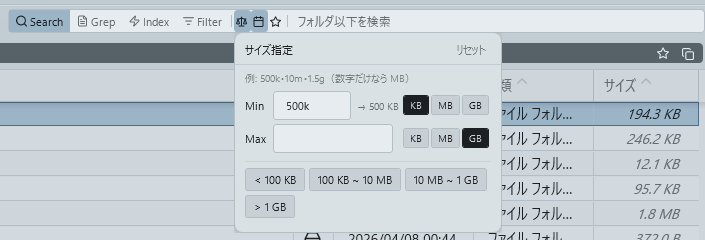
Click the balance icon to the right of the scope button in the search bar to open the size filter popup. Specify a file size range to narrow search results. Folders are not affected by the size filter. When a filter is active, the icon turns dark with an underline below. Filter state is automatically saved on app exit and restored on next launch. Works in both normal and index search.
Input Method
Specify a range with two text boxes: Min (minimum size) and Max (maximum size). The Min text box is auto-focused when the popup opens.
- Unit suffixes: Append
k(KB),m(MB), org(GB) after the number to specify the unit - Default unit when unspecified: Values without a suffix are interpreted as MB
- Unit switch: Click "KB / MB / GB" to the right of the box to change the unit of the number you typed (
500→500kand so on). The switch follows what you type, so a plain number shows "MB" as selected — you can always see which unit the filter will use - Decimal values: Decimals like
2.5g(= 2.5 GB) are supported - Examples:
| Input | Interpretation |
|---|---|
500k |
500 KB |
10 |
10 MB (no suffix = MB) |
2.5g |
2.5 GB |
100m |
100 MB |
Real-time Preview
As you type, the conversion result is shown in real time on the right (e.g., 500k shows -> 500 KB). Invalid input turns the text box border red. When Min exceeds Max, an error message "Min exceeds Max" is displayed.
Quick Tips
Four buttons for commonly used size ranges are provided for one-click input.
| Chip | Range set |
|---|---|
| < 100 KB | Max = 100 KB (Min is empty) |
| 100 KB ~ 10 MB | Min = 100 KB, Max = 10 MB |
| 10 MB ~ 1 GB | Min = 10 MB, Max = 1 GB |
| > 1 GB | Min = 1 GB (Max is empty) |
Keyboard Operations
Tab: Move from Min to Max text boxEnter: Close the popup and return focus to the search barEscape: Close the popup
Reset
Click the "Reset" button in the upper right of the popup to clear Min and Max values and remove the filter.
Date Filter Details
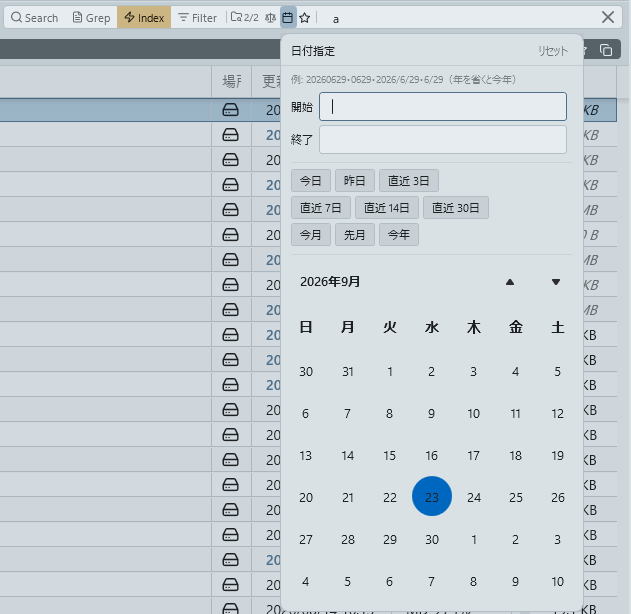
Click the calendar icon to the right of the size filter button in the search bar to open the date filter popup. Specify a date range for file modification dates to narrow search results. When a filter is active, the icon turns dark with an underline below. Filter state is automatically saved on app exit and restored on next launch. Works in both normal and index search.
Input Method
Specify a date range with two text boxes: Start and End. The Start text box is auto-focused when the popup opens. The following flexible date formats are supported.
| Format | Example | Interpretation |
|---|---|---|
yyyyMMdd (8 digits) |
20260228 |
2026/02/28 |
MMdd (4 digits) |
0228 |
02/28 of the current year |
yyyy/M/d |
2026/2/28 |
2026/02/28 |
yyyy-MM-dd |
2026-02-28 |
2026/02/28 |
M/d or MM/dd |
2/28 |
02/28 of the current year |
Real-time Preview
As you type, the conversion result is shown in real time on the right (e.g., 20260228 shows -> 2026/02/28). Invalid input turns the text box border red. When the start date exceeds the end date, an error message "Start exceeds End" is displayed.
Preset Chips
Nine business-oriented preset chips for commonly used date ranges are arranged in 3 rows. Click to instantly apply to the start and end text boxes.
| Category | Chips |
|---|---|
| Short-term | Today / Yesterday / Last 3 Days |
| Medium-term | Last 7 Days / Last 14 Days / Last 30 Days |
| Period | This Month / Last Month / This Year |
Calendar Integration
A calendar is always displayed at the bottom of the popup. Text input and calendar operations are bidirectionally synchronized.
- Text to Calendar: When a valid date is entered in a text box, the corresponding date range on the calendar is automatically highlighted
- Calendar to Text: When a date is clicked or dragged on the calendar, it is written back to the text box in
yyyyMMddformat. It is reflected in the currently focused text box (start or end)
Keyboard Operations
Tab: Move from Start to End text boxEnter: Close the popupEscape: Close the popup
Reset
Click the "Reset" button in the upper right of the popup to clear start and end values and remove the filter.