How Keybindings Work
Section summary All 100 actions are centrally managed by
KeyBindingService(App.KeyBindings). Macro shortcuts join the same table asMacro.<id>, so duplicates — and the case of binding one to the start of a two-key chord — get caught. Your bindings are saved inWindowSettings.CustomKeyBindings(List<KeyBindingDto>?). Bindings are entered in the Shortcut Keys tab (click → press key to record). On change,BindingsChangedfires andRebuildInputBindings()+UpdateShortcutTooltips()re-apply across all windows.
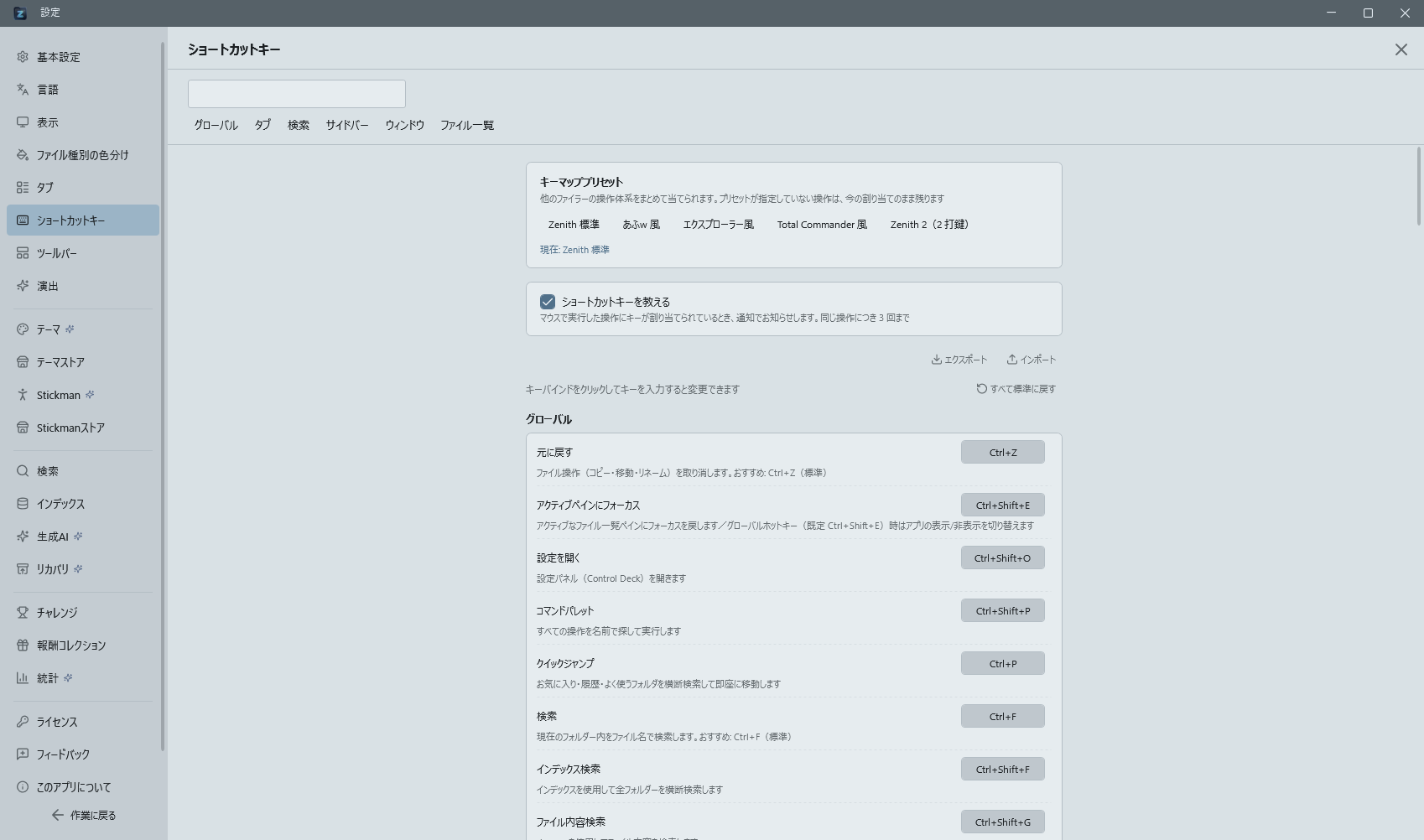
- Centralized key matching: Key handling throughout the app goes through
KeyBindings.Matches(actionId, key, modifiers), so a remapped key works everywhere. Only keys that should stay fixed — a dialog'sEsc/Enter, standard arrow-key movement — are checked directly and cannot be remapped. - Export / Import: Control Deck → Shortcut Keys → Export button writes current bindings to JSON. JSON shape:
[{ "ActionId": "Rename", "Key": "F2", "Modifiers": "None" }, ...]. Import reads the same shape and overwrites existing bindings. - Per-row reset: Each action row has a "Reset" button that restores the default (removes just that row from
CustomKeyBindings). - Tooltips: Each command button's tooltip auto-updates to include the current key (e.g.,
Rename (F2)). When a binding changes,UpdateShortcutTooltips()redraws all tooltips. - Action definitions: The authoritative list lives in
KeyBindingService.RegisterDefaults(). To add one, callRegister(...)there and add the localisation keys to all 10lang/*.jsonfiles. - Key schemes (presets): Dropping one JSON file into
data/keymaps/adds a preset. Each entry is{ "actionId", "key", "modifiers", "key2", "modifiers2" }— omitkey2for a single stroke, supply it for a two-key chord. - Never leave an operation out of reach: If something can be done from the screen but has no key, register it as an action with no key assigned so it can still be called by name from the command palette (
Ctrl+Shift+P).