Index Settings
Index Search Settings View Details
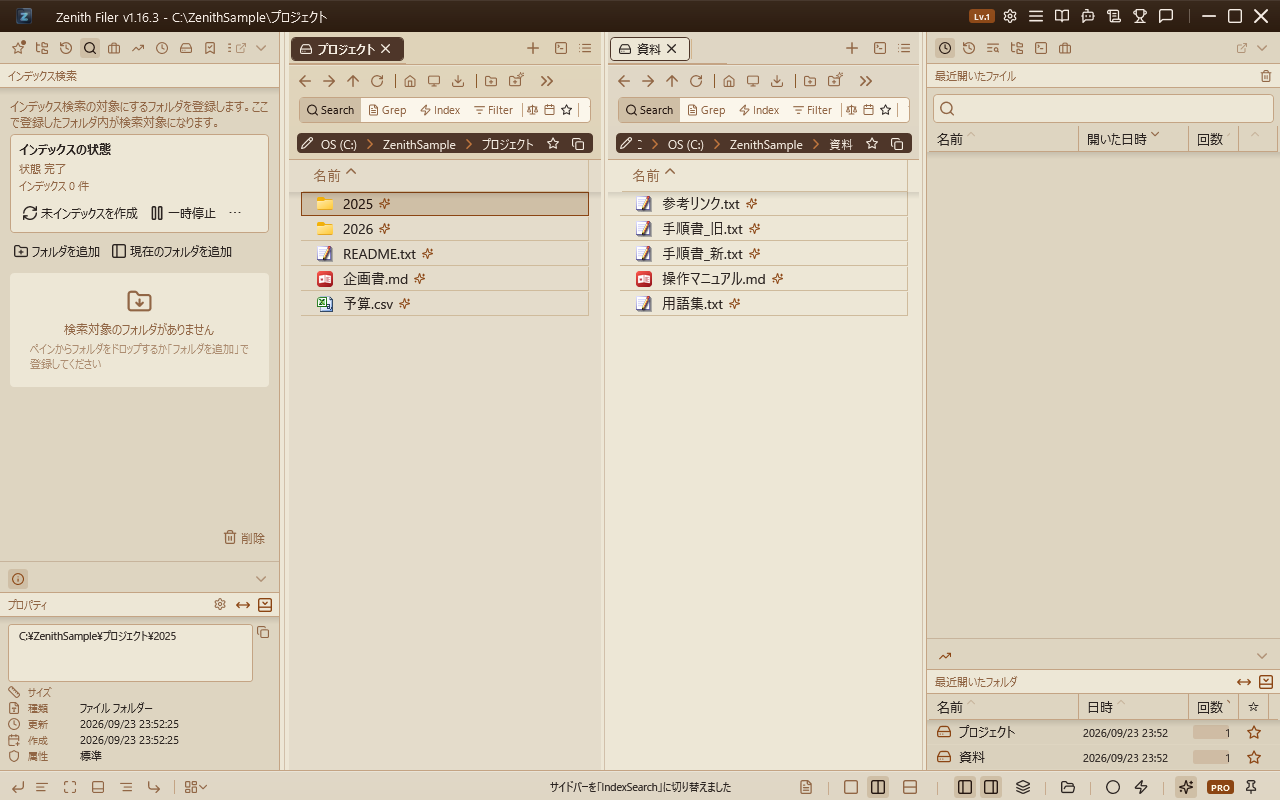
The index search settings view (default: Ctrl+Shift+4) is where you register/remove search target folders, check status, and manually update.
Your registrations (target folders and lock state) are saved immediately each time you add, remove, or lock an entry. The registrations survive a forced shutdown, crash, restart, or log-off, and are restored exactly as they were on next launch.
-
Adding and removing folders: "Add Folder" lets you select from the tree; "Add Current Folder" adds the folder currently displayed in Pane A/B.
Select an item in the list and use the "Delete" button or right-click menu to remove.
-
Right-click menu:
- Rebuild Index: Completely deletes the folder's index and rescans disk files from scratch. Use this when you need to reflect deleted files or when the index structure has changed (e.g., after a version upgrade).
- Incremental Update: Maintains the existing index and reflects only new and updated items. For routine "I want to pick up recent changes" cases, prefer this option.
-
Index Status block: Displays the current state (Index Complete / Incremental Update In Progress / Paused) and total count.
If no search target folders are registered, the total count shows as 0.
"Create Unindexed" manually indexes only unindexed folders, and "Pause" / "Resume" control index creation. "Execute Full Rebuild..." and "Open Index Settings" are accessible from the menu (⋯).
App Settings "Indexing & Search Result Freshness" Details
In Control Deck (default: Ctrl+Shift+O) > "Index" category, you can configure options for index update timing, load, and freshness.
Index Update Timing and Load
| Option | Best suited for | Internal behavior |
|---|---|---|
| Automatically incorporate changes | Directories that update frequently (development folders, documents) where you always want the latest search results. | Uses FileSystemWatcher to detect changes and incrementally updates the target folder's index each time. If many updates occur continuously, update frequency increases; consider "Update at regular intervals" mode if load is a concern. |
| Update at regular intervals | Shared folders with batch changes overnight, or frequently updated but real-time accuracy not needed. | Scans all target folders at the specified interval (1h / 2h / 4h / 1day) to bring indexes up to date. CPU/disk load spikes temporarily but update frequency is controlled. |
| Update only when needed | When you want to minimize background processing or avoid loading shared servers. | No automatic updates; indexes are only updated when "Create Unindexed" or "Full Rebuild..." is executed. |
Performance and Load
- Update index in power-saving mode: Adjusts background processing granularity by inserting wait times at regular intervals to avoid sustained CPU/disk usage.
- Process network drives gently: Applies longer wait times when scanning UNC and mapped drives compared to local disks, reducing network bandwidth and server load while updating indexes.
Search Result Freshness
-
Keep as up-to-date as possible (freshness priority): When ON, executing an index search triggers the following background operations on a separate thread.
- Already-indexed folders → incremental update
- Folders never indexed → automatically executes processing equivalent to "Create Unindexed"
The goal is to gradually bring the index up to date while maintaining search result delivery speed.
-
Show message when index may be stale: When ON, a yellow warning bar is shown at the top of the search results screen only when all of the following are met.
- Index search mode is active
- The freshness setting above is ON
- The search target folders include folders that have never been indexed
When OFF, the warning bar is never shown regardless of index state. Displayed warnings can be temporarily dismissed with the × button (effective only within that search tab).