Tabs
Panes A and B can each keep several folders open as tabs. This article covers opening, closing, switching and rearranging tabs, and what comes back when you start the app again.
What you can do
| To do this | Do this |
|---|---|
| Open a new tab | "+", Ctrl + T, or double-click an empty part of the tab bar |
| Open a folder in a background tab | Middle-click the folder in the file list |
| Close a tab | "×", Ctrl + W, or middle-click the tab |
| Switch tabs | Click, or Ctrl + Tab / Ctrl + Shift + Tab |
| Pick a tab from a list | The list button, or Ctrl + Shift + A |
| Reorder tabs or move one to the other pane | Drag the tab |
| Keep a tab from being closed by accident | Right-click → "Lock" |

Each pane has its own row of tabs, and each tab keeps its own Back / Forward history until you close it. When you quit, the same tabs come back the next time you start the app.
How to use it
Opening
- New tab: click "+" on the right of the tab bar, press
Ctrl + T, or double-click an empty part of the tab bar. A new tab opens the pane's home folder and is added at the right end (with no home folder set, Pane A uses Desktop and Pane B uses Downloads). It uses the same view mode and icon size as the tab you were looking at. - Open a folder in a new tab: middle-click a folder in the file list to open it in a background tab. The folder you are looking at stays put, so, as with middle-clicking links in a browser, you can queue up several places at once (turn this off with General → Open folders in a new tab with middle-click in Settings). The right-click "Open in new tab" does the same.
- Drop a folder on the tab bar: drag a folder onto the tab bar and release it to open it in a new tab. Dragging from Favorites, the folder tree or the history works too. If you drop several folders, only the first one opens, and files are ignored.
- Terminal tab: the button to the right of "+" opens a terminal as a tab, working in the current folder (if the folder cannot be used for that, such as a folder on a server, it starts in your user folder).
Closing
- Click the tab's "×", press
Ctrl + W, or middle-click the tab. Middle-click closing also works on the terminal tabs in the nav pane. - Locked tabs and the last tab left in a pane are never closed.
- After closing, the tab to the right of the closed one is selected (or the one to the left, if you closed the rightmost tab).
- There is no way to reopen a closed tab. Save combinations you use often as a working set to bring them all back at once.
Switching
- Click a tab, or press
Ctrl + Tabfor the next tab andCtrl + Shift + Tabfor the previous one. At either end it wraps around. -
Tab list: the list button at the right end of the tab bar, or
Ctrl + Shift + A, lists the current pane's tabs.- Click one, or pick it with
↑↓and pressEnter, to switch to it. - Close a tab with its "×", or by picking it and pressing
DeleteorCtrl + W(locked tabs have no "×"). Escor a click outside the list closes it.- From either pane,
Ctrl + Shift + Alt + 1opens Pane A's list andCtrl + Shift + Alt + 2opens Pane B's.
You can change these keys in Settings → Shortcut Keys.
- Click one, or pick it with
Reordering and moving to the other pane
- Reorder: drag a tab left or right (the drag starts once you move 10px).
-
To the other pane: drag a tab onto the other pane's tab bar to move it to where you drop it. The tab's right-click menu offers the same and more:
- Move to other pane moves the tab itself, and its Back / Forward history goes with it.
- Duplicate to other pane (
Ctrl + N) opens the same folder in a new tab in the other pane and leaves the original where it is. - Duplicate tab (
Ctrl + Shift + D) opens the same folder in a new tab in the same pane. It acts on the tab you right-clicked, so you can duplicate a tab that is not selected.
A duplicated tab starts with no Back / Forward history. Moving or duplicating to the other pane while only one pane is shown switches to two panes.
Locking, and adding all tabs to Favorites
- Lock: right-click a tab → "Lock". A locked tab shows a padlock instead of "×" and cannot be closed. Right-click → "Unlock" to undo it. Locks are kept the next time you start the app.
- Add all tabs in this pane to favorites: choose it from a tab's right-click menu to add the folders of every tab in that pane to Favorites, grouped in a new virtual folder. You enter the folder name and an optional description before it is saved. Folders that no longer exist or are already in Favorites are skipped.
Changing how tabs look
These are in the Tab section of Settings.
| Setting | Options |
|---|---|
| Tab Width | Fixed Width (tabs shrink to fit their name, up to the fixed width size below) / Auto-adjust to Folder Name (up to 600px) |
| Fixed Width Size | 100, 120, 150 (default), 200 or 250px |
| Tab Wrapping | Single Row (Scroll) / Multiple Rows (Wrap) |
| Tab Row Height Sync | When wrapping, keeps the tab bars of Panes A and B the same height so the address bars line up |
| Tab List Integration | Hides the A/B tab bars while the Tab Management view is shown in the nav pane |
Tab text size is under Display → Tab text, and the switching animations (the content fade and the sliding underline) can be turned off with Effects → Enable tab operation animations.
How it works
What comes back at startup
- Tabs are saved per pane to
settings.jsonwhen you quit: each tab's folder, whether it is locked and what kind it is (folder or terminal), plus the selected tab, whether the address bar was a text box, the view mode, icon size and sort order, and the pane's home folder. - Search result tabs come back as ordinary folder tabs (the search is not run again).
- Only the tab that was selected reads its folder right away. The others read theirs the first time you switch to them, so keeping many tabs open does not slow down startup.
- With General → Restore previous tabs on startup turned off, each pane starts with a single tab on its home folder.
Remembering each folder's view
When General → Auto-restore folder display settings is on (the default), the sort order, view mode, icon size and "folders first" you used in a folder are remembered when you leave it and applied the next time you open that folder, in any tab. Folders not opened for 180 days are forgotten.
What makes switching fast
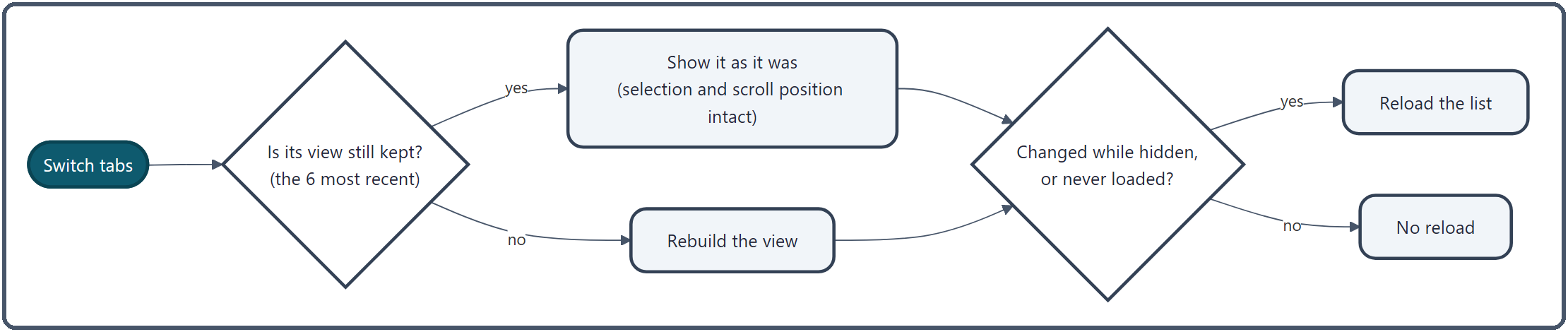
- The views of the 6 most recently used tabs are kept as they are. Switching back shows them without rebuilding anything, so the selected files and scroll position are exactly as you left them. When you switch to a seventh tab, the view of the tab you have not looked at for the longest is let go (never the selected tab or a terminal tab). A tab whose view was let go rebuilds it the next time you switch to it.
- Hidden tabs keep watching their folders. When files appear or disappear, the tab just marks itself as needing a reload and reloads when you switch to it, so hidden tabs do not keep reloading and slow down the one you are working in.
- Back / Forward history is kept in memory per tab and is gone once you close the tab or quit the app.
Related
- Navigation — Back, Forward and Up
- Address Bar and Breadcrumb — go somewhere by typing a path
- Nav Pane — handle the A/B tabs together in the Tab Management view
- Working Sets — save a combination of tabs and bring it back
- Keyboard Shortcuts — change the tab keys