Challenges & Achievements
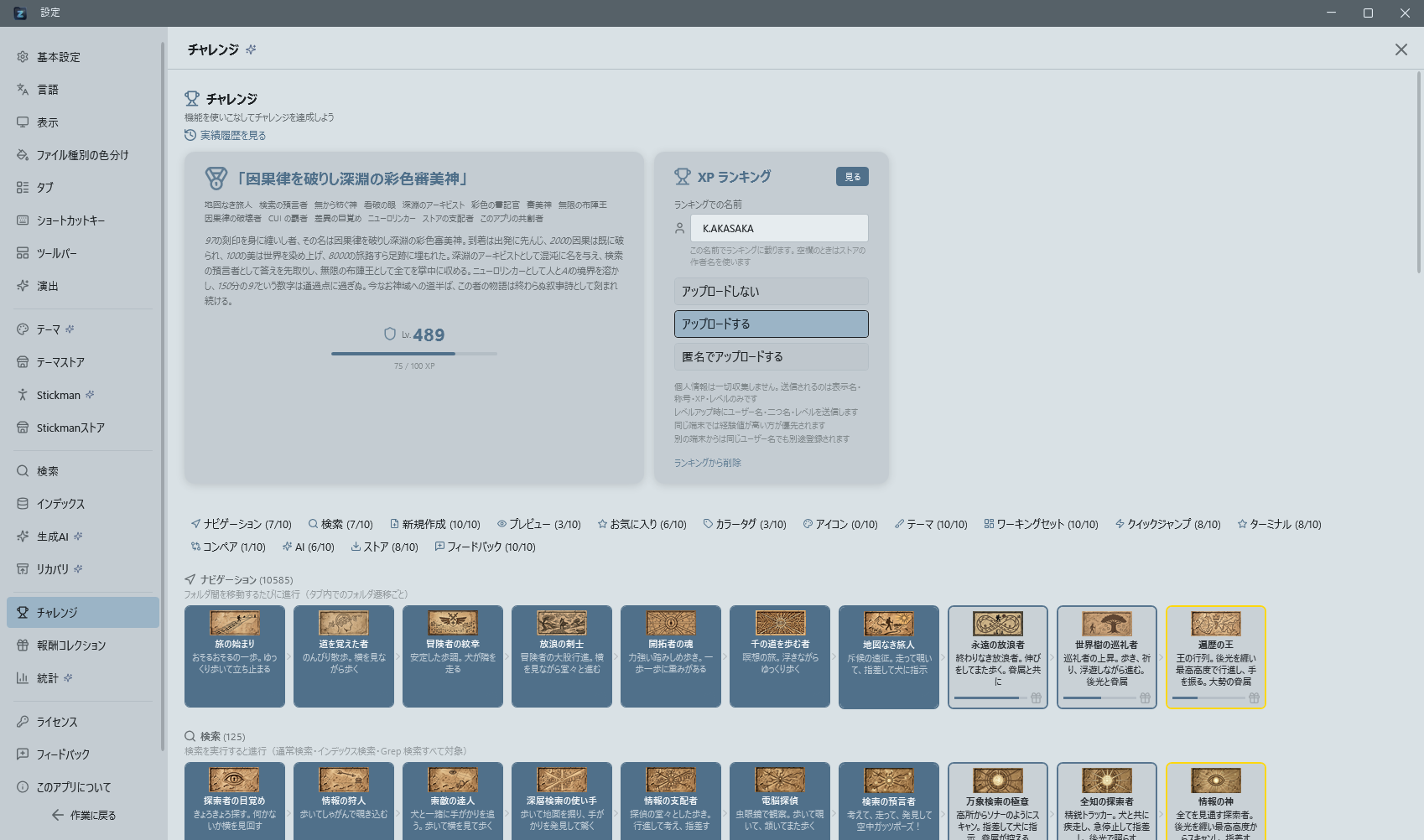
A gamification feature that visualizes how extensively you use Zenith Filer. Access it from the "Challenge" page in settings.
How Challenges Work
Your everyday file operations are automatically tracked, and achievements are recorded across 15 categories.
Each category has 10 tiers, and you advance to the next tier upon meeting the requirements (150 challenges in total).
15 Challenge Categories: File Operations, Search, Theme Changes, AI Usage, Favorites, Tab Operations, Settings Customization, Working Sets, Text Comparison, Terminal, Index Search, Drag & Drop, Keyboard Operations, Preview, Time Usage
Level and XP
Using the app earns experience points (XP), which increase your level. Your current level is displayed in the level banner on the title bar. When you level up, the banner pulses with a glow effect.
XP distribution and calculation
- XP sources: how many times you did something, times what that action is worth. Completing a challenge does not itself grant XP (it grants a coin). Actions are weighted by how much they ask of you:
| XP | Action |
|---|---|
| 30 | Rating a theme (only the first time you rate a given theme) |
| 20 | Giving a favourite an icon |
| 15 | Switching themes / colour tags |
| 12 | Downloading from the theme store / working sets |
| 10 | Adding a favourite / comparing files |
| 8 | Search / terminal |
| 5 | AI features |
| 3 | Quick jump / creating something new |
| 2 | Preview |
| 1 | Moving between folders |
Favourites, icons, and colour tags are counted by how many you currently have, so adding and removing them in a loop does not add up. - Level calculation: one level per 100 XP, flat. Current level and progress to the next level are visualized in the title bar level banner and the challenges page. - Ranking submission: Control Deck → Statistics → Ranking Settings offers 3 options: - "Don't submit" - "Submit anonymously" (default since v0.41.8) - "Submit with real name" Submission runs in the background once per day at startup and on level-up. What is sent is your display name, title, XP, level, and a randomly generated per-device identifier. No personal information is included. - Because anonymous submission is the default, a one-time toast on first launch tells you so, with a shortcut to the setting - Choosing "Don't submit" stops all submission. Anything already sent can be removed with "Delete from ranking" - How the ranking is presented: "View" opens a level distribution, not a ranked list. It shows where you sit as a top-percentage and a rank, with a bar chart of how many people are in each level band. It also shows the XP remaining to your next level and roughly where that would place you. The view is designed to stay meaningful while you participate anonymously. - Below the distribution is "Everyone's titles", ordered by level, with identical titles folded into a single row carrying a count such as "×3". The row holding your own title is tinted - The footer shows the number of participants, the highest level, and how many have launched within 30 days - If you are participating anonymously, "Show my name" takes you to the display-name setting - The developer's own machines are excluded from every rank, count, and distribution - Name shown on the ranking: Set it in the field directly under the "View" button inside the XP ranking card. Whatever you type there is how you appear on the ranking (up to 24 characters). - The field starts out holding the name currently in use. If you have set an "author name" on the license/store page, that is the initial value - Leaving it blank falls back to the store "author name". If both are blank, the anonymous name is sent - While "Upload anonymously" is selected no name is sent, so the field is disabled - Changes take effect on the next submission (on level-up, or when you switch the submission mode)
Epithets (Titles)
When you complete a challenge, the AI generates an "epithet" (title). Earned epithets are displayed in the epithet banner on the title bar.
Each epithet comes with an AI-generated backstory that you can read by hovering over the banner.
On startup, your epithet is shown as a welcome greeting.
Epithet history: The achievement history dialog includes an "Epithet History" tab where you can browse all previously generated epithets with their acquisition date, source badges, and backstory (up to 200 entries saved). Click the epithet banner in the title bar to open the history directly.
Generation spec:
- Uses the currently configured AI provider (Claude / OpenAI / Azure OpenAI / Gemini).
- The prompt summarizes achieved badges and usage stats; localized versions are generated simultaneously for all 10 languages (same description.{locale} style as mascot descriptions). The displayed text matches the current lang/ setting.
- A backstory is generated at the same time, typically around 140 characters of narrative text.
Challenge Cards
Each challenge is displayed in a dedicated card UI.
You can check the progress bar, current tier, completion conditions, and backstory. Each challenge comes with an AI-generated narrative backstory (140 entries across 10 languages).
Click a card to read the full story. Challenges that have reached the highest tier (Tier 10) display a crown icon with a gentle pulsing glow animation.
Feature Recommendation System (Just-in-time Tips)
A system that analyzes your usage patterns and recommends features you haven't tried yet at opportune moments. Hints are periodically displayed in the properties pane.