Settings Backup & Recovery
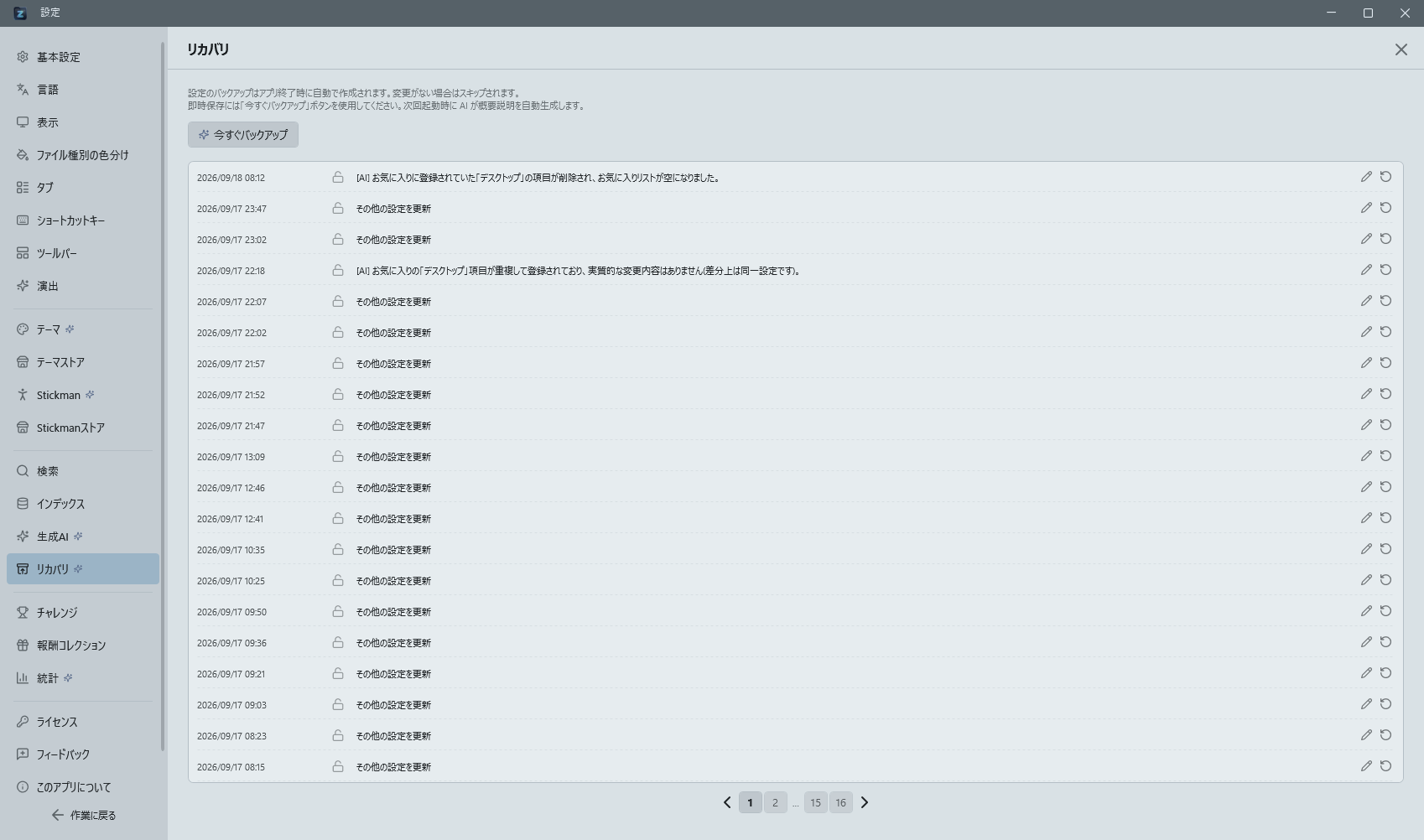
From Control Deck (default: Ctrl+Shift+O) > "Recovery" category, you can manage settings backup and restoration.
Creating Backups
| Timing | Behavior |
|---|---|
| After a settings change (automatic) | About 5 minutes after a change is detected, backups/settings_yyyyMMdd_HHmmss.json is generated. This works even if you run in resident mode and keep the app minimized to the tray instead of exiting |
| On full exit / minimizing to tray (automatic) | An additional backup is generated immediately at that moment, without waiting for the 5-minute delay above |
| "Back up now" button | Immediately backs up the current settings.json. The summary reads "Manual backup" |
| Just before restoring a backup (automatic) | Your current settings are saved as an "Auto-save before restore" snapshot first, so you can always undo an accidental restore |
Change Summary (Diff Summary)
Each backup has a summary in Japanese showing the differences from the previous backup, saved in a .desc file (e.g., "Updated Pane A home, search behavior"). The first backup is recorded as "Initial backup."
Backup List (Inline Display)
Opening the "Recovery" category displays the backup list within the settings screen.
- Columns: Date/Time / Lock status (lock icon) / Change summary / Edit button / Restore button
- Edit summary: Click the pencil button to edit the change summary inline. Enter to confirm, Escape to cancel. Locked backups cannot be edited
- Restore: Click the rotate-arrow button to display a confirmation dialog and restore to the selected point in time. After restoration, a restart prompt dialog appears; selecting "Yes" triggers automatic restart
- Lock / Unlock: Click the lock icon to toggle lock status. Locked backups are excluded from the 30-day auto-deletion policy. Lock important settings for protection
Automatic Cleanup
On app startup, backups older than 30 days are automatically deleted. However, backups with a .lock file (locked) are not deleted.
Feedback Reporting from Error Dialogs
When an unexpected error occurs, you can send feedback directly from the error dialog. Error details are automatically attached.
Reference Number
When feedback is sent successfully, the message includes a reference number (e.g. Reference no. #220). The number, title, the text you sent, category and send time are kept in data\feedback_history.json and survive a restart (up to the 50 most recent; older entries are dropped first).
Nothing identifying the sender is included in what gets submitted. The link between you and a reference number exists only in this local record.
Your Submissions and Replies from the Developer
Your submissions are listed in a table at the bottom of the Feedback page. Each row shows status, reference number, type, subject, date sent and reply count, so you can see where each report stands at a glance.
| Status | Meaning |
|---|---|
| Not checked | Status has not been fetched yet (offline, etc.) |
| In progress | Received and being worked on |
| Done | The work is complete |
| Not planned | A decision was made not to act on it (by design or policy) |
- Click a row to expand it and see the text you sent at the top, followed by replies from the developer and your own replies in chronological order. The developer's replies are aligned left, yours to the right. Only the description you wrote is shown — any system information or logs you attached are not
- Older entries kept before this existed have no stored text; it is filled in from the receiving end the next time you check for replies
- You can drag across the text of any message to select it and copy it with
Ctrl+C— handy for quoting part of a reply back (right-clicking to copy the whole thing works too) - You can reply on the spot. Replies can only be sent on reports you submitted yourself (a 60-second interval is required between replies)
- When the developer replies that a report has been fixed, "It's fixed" and "Still happening" buttons appear in the expanded row once your app is on a version that includes the fix. One click lets the developer know how it went. "Still happening" also sends whatever you've typed in the reply box and puts the report back in progress. You're only asked once per fix
- When there is an unread reply, a count badge appears on "Feedback" in the left menu and an accent bar appears at the left edge of the row. Opening the row marks it as read. Rows waiting for you to confirm a fix also get the accent bar (they don't add to the count badge)
- Use "Check for replies" to refresh manually. Fetching happens only when you open the Feedback page in settings — never at app startup
- If you are offline or the fetch fails, what is stored locally is still shown
Only replies to reports you submitted yourself are shown. There is no way to read someone else's report by entering its number.