Navigation
Opening folders, Back / Forward / Up, the PC view, jumping to common places, and moving between Zenith Filer and File Explorer. To move with the breadcrumb or by typing a path, see Address Bar and Breadcrumb.
What you can do
| To… | Do this |
|---|---|
| Go into a folder | Double-click, or press Enter |
| Go back / go forward again | Alt + ← / Alt + → (or the mouse side buttons) |
| Go up one level | Backspace |
| Pick another drive | "Up" from a drive root → PC view |
| Jump to a usual place | Home, Desktop and Downloads on the toolbar |
| Move to and from File Explorer | Open the current folder in Explorer / bring in the folders open in Explorer |
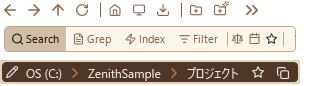
The navigation buttons sit together on row 1 of the pane header (the action row). Going back or up puts the focus on the folder you just came out of, so you never lose your place, even when moving around with the keyboard alone.
How to use it
Open, Back, Forward, Up
- Open folder: Double-click or press
Enter. -
Go back: Toolbar "←" button,
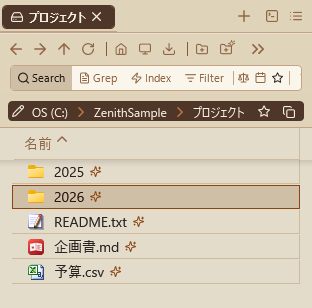
Alt + ←, or the mouse "back" side button.In the returned list, the previously entered folder is focused, allowing continued arrow-key navigation from that position.
-
Go forward: Toolbar "→" button,
Alt + →, or the mouse "forward" side button. -
Go up one level: Toolbar "↑" button or
Backspace.In the returned list, the previously entered folder is focused, allowing continued arrow-key navigation.
Executing "Up" at a drive root (e.g.,
C:\) navigates to a "PC" view listing all drives.
You can change the keys under Settings > Shortcut Keys. With the "Explorer style" preset, Backspace is Back and Alt + ↑ is Up.
PC view
A virtual top-level hierarchy above drive roots.
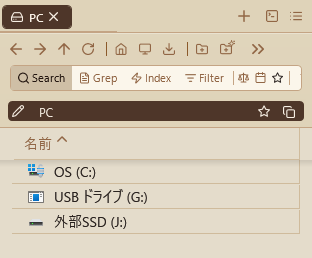
- All drives on the PC (local disks, network drives, removable disks, etc.) and devices such as phones and cameras are listed; double-click or press
Enterto navigate to a drive root. The "Type" column shows the kind of drive (local, removable, network and so on) and the "Size" column its total capacity. -
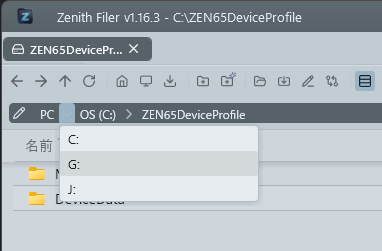
A "PC" segment is always displayed at the beginning of the breadcrumb list, and clicking it navigates to the PC view. Clicking the "›" to the right of "PC" lets you pick a drive from a list instead.
-
Typing "PC" in the address bar and pressing
Enteralso navigates there. - There is nothing above the PC view, so "Up" does nothing there.
Jumping to common places
- Add to favorites: Press the ★ button at the right end of the address bar to register the currently displayed folder to favorites.
- Navigate to home: Click the home icon on the toolbar to navigate to the home folder set in app settings. If not configured, Pane A goes to Desktop and Pane B goes to Downloads.
- Navigate to Desktop: Click the monitor icon on the toolbar to navigate to the Desktop folder.
- Navigate to Downloads: Click the download icon on the toolbar to navigate to the Downloads folder.
- Copy path: Click the copy icon on the right end of the address bar to copy the current folder's full path to the clipboard.
Moving to and from File Explorer
- Open in Explorer: Click the open-folder icon on the toolbar to open the currently displayed folder in Windows Explorer.
-
Import Explorer folder: Click the import icon on the toolbar (right of the open-folder icon) to import folders from currently open Windows Explorer windows. The Recycle Bin is not a folder and can't be imported; a File Explorer window showing it is left open, and you are told why (you can also open the Recycle Bin from the Tree view in the nav pane).
Imported folders are always shown in new tabs.
- If there is only 1: opens in a new tab and the Explorer window closes.
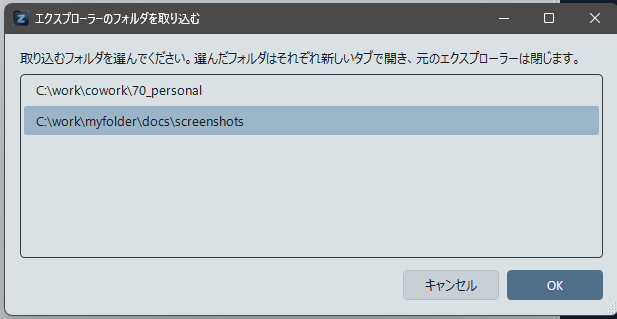
- If there are 2 or more: a selection dialog lets you choose which to import; selected folders each open in new tabs and the corresponding Explorer windows close.
Keeping the list up to date
-
Refresh: Press
F5or click the toolbar refresh button (folder changes are auto-detected, but manual refresh is also available).Both F5 and the button work in detail view and icon view alike.
When folder monitoring connection is lost on network drives, automatic reconnection is attempted with exponential backoff (1s → 2s → 4s → … up to 30s). Reconnection progress is notified in the status bar ("Network disconnection detected. Attempting reconnection..." → "Folder monitoring resumed" on success).
After reaching the maximum (10 attempts), "Folder monitoring has stopped. Press F5 to refresh" is displayed; F5 or the refresh button enables manual reconnection.
How it works
From opening a folder to seeing its list
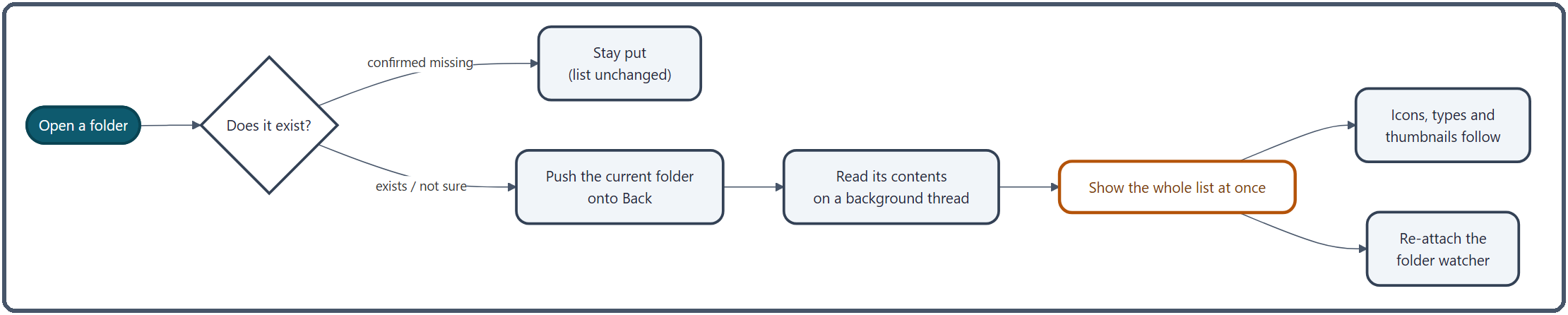
- Check that the folder exists: this waits up to 2 seconds (0.3 seconds for folders on a network). Navigation stops only when the folder is confirmed missing; if the check cannot tell in time, the folder is opened anyway, so a slow network never blocks you just because the check was slow. The answer is remembered for 0.8 seconds, so opening the same folder again right away skips the check.
- Push onto Back: the folder you were in goes onto the Back history, and Forward is cleared (the same idea as a web browser).
- Read the contents on a background thread: the window never freezes. Only one load runs at a time; if you move somewhere else mid-load, the newer request reads the latest location.
- Show the whole list at once: sorting is finished in the background, then the list is swapped in one go. Rows are only created for what is visible on screen, so drawing stays light even for folders with tens of thousands of items.
- Icons, types and thumbnails follow: items first appear with a generic icon for their extension, then the real icons and type names are filled in on a background thread, 200 at a time. Thumbnails and large icons are fetched only for the part of the list you can see.
- Re-attach the folder watcher: files added or removed from outside show up in the list automatically. Changes are gathered for 0.12 seconds at a time, and the list is refreshed at most once every 0.5 seconds (2.5 seconds for cloud-synced folders), so a sync tool rewriting many files cannot keep the list flickering.
The Back / Forward history
- History is kept per tab and records only folder locations — not which file was selected or where you had scrolled to.
- It lives in memory only, and is lost when the tab closes or the app exits. A tab made with "Duplicate tab" starts with no history.
- On Back and Up, the app remembers the folder you are leaving and focuses it once the new list has loaded. If you click in the list or press a key while it is still loading, your action wins and the focus is left alone.
How the PC view lists drives
- The list of drives is built on a background thread by asking Windows. Drives that are not ready (such as a card reader with no card) are left out.
- Display names (such as "Local Disk (C:)") are the same ones File Explorer shows, taken from Windows.
- A disconnected network drive can delay the list while it waits for a reply. The window does not freeze, so other tabs and panes stay usable.
Related
- Address Bar and Breadcrumb — move with the breadcrumb or by typing a path
- Tabs — open folders in new tabs
- Favorites — register folders you use often
- Nav Pane — move from the Tree or Browse History
- Keyboard Shortcut Reference — change the navigation keys