Help & Document Viewer
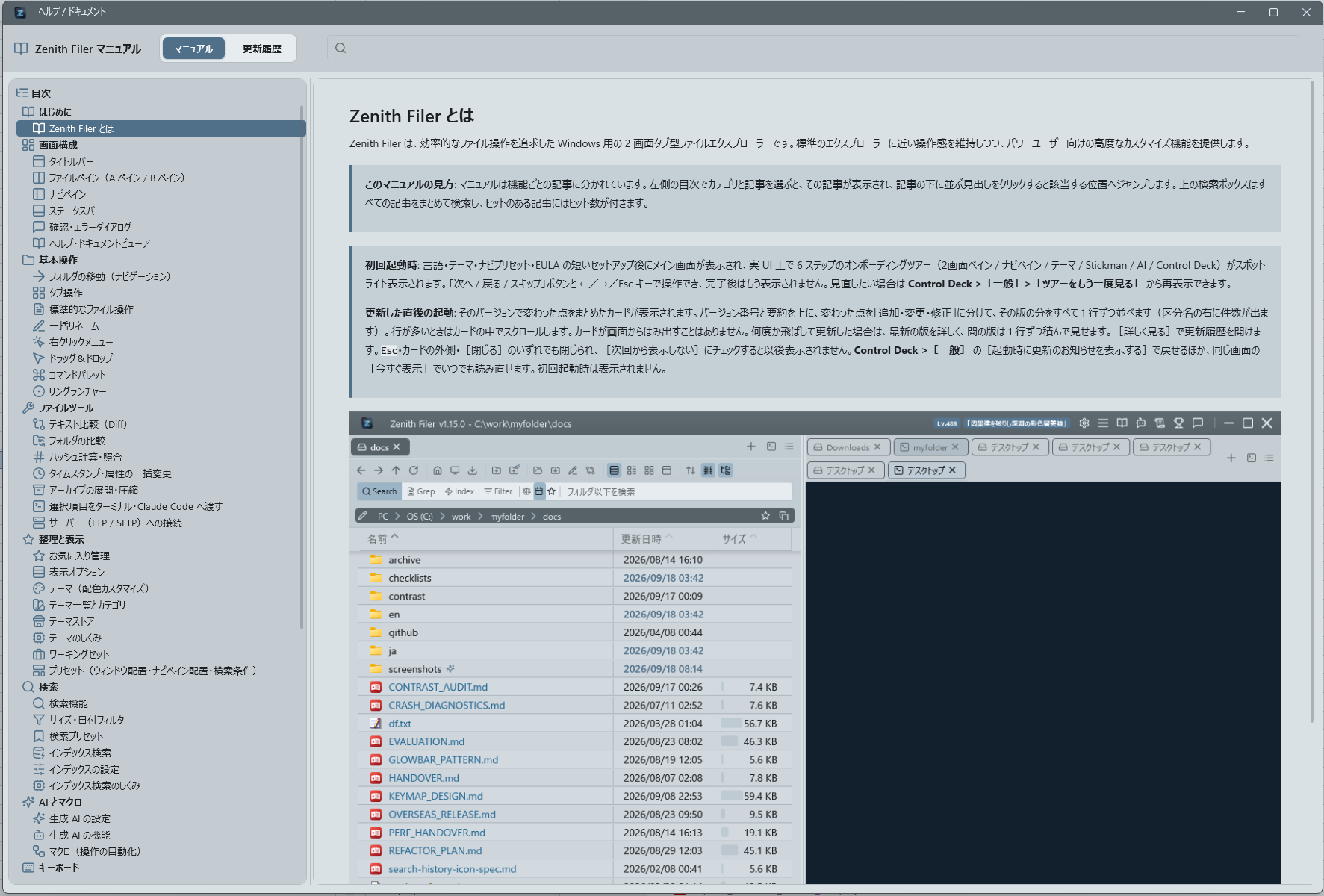
You can open the app's help window (comprehensive document viewer) from the "Manual" icon on the right side of the main window's title bar.
The document viewer does not block the main window. You can keep it open and go on using the file list and the menus, so you can read a procedure and try it out at the same time. Its size and position are remembered, so once you park it on a second monitor or off to one side, that is where it opens next time. Choosing "Manual" or "Changelog" again while it is already open does not add a second window — the existing one comes to the front and switches to the tab you picked.
-
Comprehensive document viewer: A viewer that lets you switch between viewing "User Manual" and "Changelog" within a single window.
Scroll positions are maintained independently for the manual and changelog, so switching tabs resumes from where you left off. - Top header: - The app name and document icon (BookOpen) are displayed on the left. - Two segment buttons, "Manual" and "Changelog," are in the center area; click to switch content. The selected mode is highlighted with the same accent color (blue) as the file list. - A keyword search box is on the right. Matches in the article on screen are highlighted, and Previous / Next step through them. In the manual, every article is searched at once: each article in the table of contents shows its number of matches, and articles with none are dimmed. Pressing Next after the last match of an article moves on to the next article that has matches. - The "X" button on the far right closes the window, just like the Esc key. - Left pane (Table of contents): - In manual mode, the list shows categories (such as "Screen Layout" and "Basic Operations") with their articles beneath. Choosing an article shows just that article on the right, and its headings unfold under it in the list. Choosing a category opens its first article. If you switch to the changelog and back, the article you were reading opens again. - In changelog mode, version headings (e.g.,
## [0.3.66] - 2026-02-06) generate labels likev0.3.66for the list. Adding " : summary" at the end of the heading will also display that content in the table of contents. Items are listed from newest to oldest (descending). - In both modes, clicking an item smoothly scrolls the right pane to the corresponding section, and the currently viewed section is automatically highlighted as you scroll through the body text. - The left pane width is adjustable via splitter, and the scrollbar is positioned on the right edge. The window and left pane are displayed large by default, making long headings less likely to be truncated. - Right pane (Body text): - A common Markdown-based rendering engine is used for both the manual and changelog, providing unified styling with a touch of blue accent color, table padding,kbd-like shortcut notation, line spacing, and bullet design. - "Added," "Changed," "Fixed," and other list items in the changelog also have the same readable line spacing and blue dots as the manual, delivering a consistent documentation experience. - Scroll to the end of an article and a "Next article" bar appears at the bottom. Keep turning the wheel down — there is no need to stop first — and the bar's gauge fills; when it is full the next article opens. Turning the wheel up at the top of an article shows a "Previous article" bar instead, and the same steps take you back to the end of the previous article. Clicking a bar works too. Right after a move, the wheel has to stop once before another move can start while you are still at an edge, so you will not skip straight through a short article or bounce back to the one you just left. On the keyboard,PageDown/Spaceat the end andPageUp/Shift+Spaceat the top do the same. - Clicking a link in the text takes you to the right place: a link to another article opens that article at the linked heading, and a link to a heading in the same article scrolls there. Web links (http/https) open in your default browser. Any other kind of link — to a local file or program, for example — is not opened. - Controls and shortcuts: - Press Esc or the "X" button on the header right side to close the window. - Manual/Changelog switching is done by mouse click (keyboard shortcuts do not interfere with those on the main window side). - The document viewer stays in front of the main window. You can click straight through to the app when you want to operate it; when it is in the way, move it aside or close it with Esc (it also closes together with the main window).