AI Features
AI Theme Diagnosis
- Operation: Control Deck > Theme > AI Theme Diagnosis
- How it works: Answer 3-5 multiple-choice questions to receive a best-match recommendation from 50 themes
- Suggests a theme with an explanation of why it matches, ready to apply
- Pro feature (free version: 3 uses/day, shared with theme generation)
AI Theme Generation
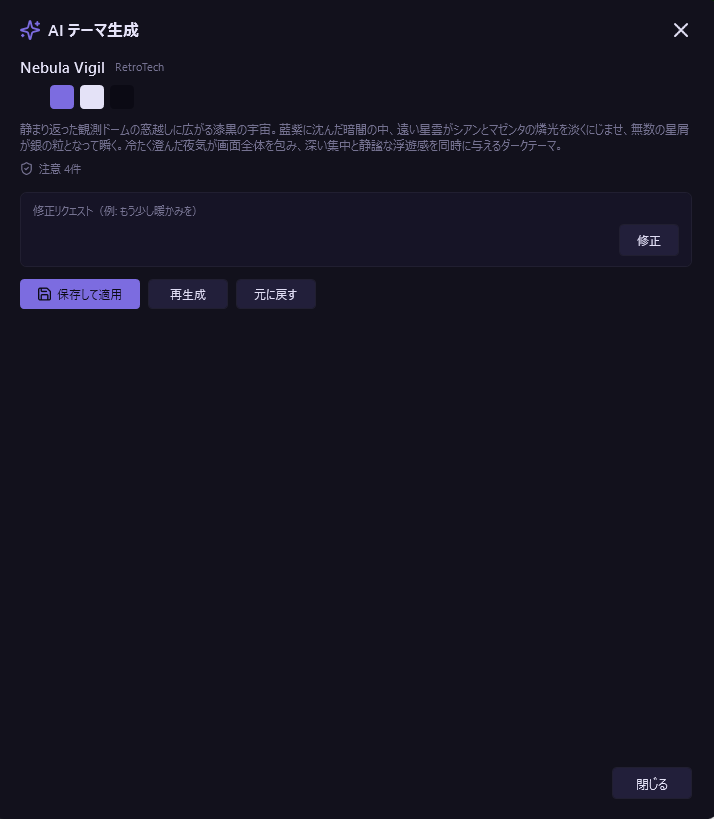 - Operation: Control Deck > Theme > AI Theme Generation
- How it works: Describe in natural language (e.g., "a dark theme inspired by outer space") to generate an original full-palette theme
- Live preview for instant verification > request adjustments > save
- Generated themes are added to the "AI Generated" category, with automatic category classification based on color analysis
- A 35-point quality check (body-text contrast, saturation, accent consistency, and more) runs automatically; if a generated theme falls short, an AI-assisted fix-up pass and local auto-correction bring it back within readability targets
- Dialog layout: Top to bottom, the dialog is ordered "Basics" > "Colors & palette" > "Tone" > "World & imagery," each section carrying a short explanation of what you decide there. The Generate button sits in the footer (next to Close). Every selection is optional — anything you leave alone is decided by the AI
- Tooltips: Hover over any selection button — brightness, vividness, colors, moods or scenes — to see a description of what palette and impression that choice produces, so you can check a tag's effect before committing to it
- Basics: Enter the theme name, then a free-text theme description, then set the proper-noun masking option. You cannot generate with both the description and all chips left empty
- Colors & palette: Specify colors per UI role (one choice per row; all default to "Auto")
- Main color: Backgrounds and large surfaces (base color)
- Sub color: Tiles, cards, and section backgrounds. Besides concrete colors, you can specify it relationally as "Same family as main" or "Contrast with main"
- Accent: Highlights and active states
- Font color: Tendency for all text ("Auto (harmonize with background)," "Clear black," "Clear white")
- Available colors include hue families (blue, green, purple, red, pink, orange/brown, gold/yellow, cyan/teal, monochrome, colorful) plus tone and texture families (white & ivory, black & jet black, gray & neutral, pastel & dreamy, dusty & earth tones, vivid & neon, metallic & glossy, clear & translucent)
- Tone: Choose brightness (Auto / Light / Dark) and vividness (Auto / Muted / Standard / Vivid)
- World & imagery: Select any number of moods (Simple & practical / Emotional / Fantasy & dark) and scenes (Everyday, nature & materials / Sci-fi & technology / Fantasy & otherworldly). Each category carries a short description of its direction
- Exclusions (right-click): Right-click a mood or scene tag to mark it as "never include in this theme" (blue background + strikethrough). The AI keeps that direction out of the palette, materials, lighting, silhouette, theme name and descriptions, and won't drift toward the color families it evokes. Exclusions outrank both your selected tags and the free-text description. Right-click again to clear, or right-click a selected tag to flip it straight to excluded. You can generate from exclusions alone (they are not saved as theme tags)
- "Clear selections" (to the right of the Colors & palette heading) clears every color, tone, and world selection, returning each row to "Auto"
- Blur proper nouns (recommended for rights protection): A checkbox directly below the description field (on by default). When it is on, all proper nouns (character names, work/title names, brand names, real people, and so on) are stripped from the generated theme name and description, leaving only the color scheme and mood. The AI automatically assigns an evocative, proper-noun-free English name (for example, "Eva Unit-01" becomes "Berserker Violet"), and the description is expressed purely in terms of color, light, material, and mood. Masking works as translation rather than deletion: the source's iconic color pairings, materials, light sources, silhouettes and era are each converted into proper-noun-free language, so turning masking on does not make the description shorter or vaguer. When it is off, behavior is as before — the theme name you entered is used as-is and the description reflects your concept — but the generated theme may contain copyrighted or trademarked wording. Personal use is fine, but beware of rights infringement when publishing or sharing. The setting is remembered by the app
- Operation: Control Deck > Theme > AI Theme Generation
- How it works: Describe in natural language (e.g., "a dark theme inspired by outer space") to generate an original full-palette theme
- Live preview for instant verification > request adjustments > save
- Generated themes are added to the "AI Generated" category, with automatic category classification based on color analysis
- A 35-point quality check (body-text contrast, saturation, accent consistency, and more) runs automatically; if a generated theme falls short, an AI-assisted fix-up pass and local auto-correction bring it back within readability targets
- Dialog layout: Top to bottom, the dialog is ordered "Basics" > "Colors & palette" > "Tone" > "World & imagery," each section carrying a short explanation of what you decide there. The Generate button sits in the footer (next to Close). Every selection is optional — anything you leave alone is decided by the AI
- Tooltips: Hover over any selection button — brightness, vividness, colors, moods or scenes — to see a description of what palette and impression that choice produces, so you can check a tag's effect before committing to it
- Basics: Enter the theme name, then a free-text theme description, then set the proper-noun masking option. You cannot generate with both the description and all chips left empty
- Colors & palette: Specify colors per UI role (one choice per row; all default to "Auto")
- Main color: Backgrounds and large surfaces (base color)
- Sub color: Tiles, cards, and section backgrounds. Besides concrete colors, you can specify it relationally as "Same family as main" or "Contrast with main"
- Accent: Highlights and active states
- Font color: Tendency for all text ("Auto (harmonize with background)," "Clear black," "Clear white")
- Available colors include hue families (blue, green, purple, red, pink, orange/brown, gold/yellow, cyan/teal, monochrome, colorful) plus tone and texture families (white & ivory, black & jet black, gray & neutral, pastel & dreamy, dusty & earth tones, vivid & neon, metallic & glossy, clear & translucent)
- Tone: Choose brightness (Auto / Light / Dark) and vividness (Auto / Muted / Standard / Vivid)
- World & imagery: Select any number of moods (Simple & practical / Emotional / Fantasy & dark) and scenes (Everyday, nature & materials / Sci-fi & technology / Fantasy & otherworldly). Each category carries a short description of its direction
- Exclusions (right-click): Right-click a mood or scene tag to mark it as "never include in this theme" (blue background + strikethrough). The AI keeps that direction out of the palette, materials, lighting, silhouette, theme name and descriptions, and won't drift toward the color families it evokes. Exclusions outrank both your selected tags and the free-text description. Right-click again to clear, or right-click a selected tag to flip it straight to excluded. You can generate from exclusions alone (they are not saved as theme tags)
- "Clear selections" (to the right of the Colors & palette heading) clears every color, tone, and world selection, returning each row to "Auto"
- Blur proper nouns (recommended for rights protection): A checkbox directly below the description field (on by default). When it is on, all proper nouns (character names, work/title names, brand names, real people, and so on) are stripped from the generated theme name and description, leaving only the color scheme and mood. The AI automatically assigns an evocative, proper-noun-free English name (for example, "Eva Unit-01" becomes "Berserker Violet"), and the description is expressed purely in terms of color, light, material, and mood. Masking works as translation rather than deletion: the source's iconic color pairings, materials, light sources, silhouettes and era are each converted into proper-noun-free language, so turning masking on does not make the description shorter or vaguer. When it is off, behavior is as before — the theme name you entered is used as-is and the description reflects your concept — but the generated theme may contain copyrighted or trademarked wording. Personal use is fine, but beware of rights infringement when publishing or sharing. The setting is remembered by the app
AI Theme Adjustment
- Operation: Right-click a theme card > "Adjust with AI"
- How it works: Give natural language instructions for color changes (e.g., "make it darker," "change accent to red tones")
- Changes are immediately reflected in the preview
- The customization dialog is non-modal, so you can interact with the app's file lists and nav pane while the dialog remains open, allowing you to verify the applied theme before saving
- Automatic WCAG contrast validation ensures readability
- When the "Blur proper nouns" setting is on, customizing an existing theme also strips proper nouns from the description (customization does not rename the theme)
AI Folder Analysis
- Location: AI Folder Organizer view in the nav pane
- Analysis: Press "Analyze" for an AI-generated 3-section report (📊 Current State / ⚠️ Issues / 💡 Improvement Suggestions)
- Action generation: Approve with YES/NO to generate specific actions (folder creation, moves, renames, up to 30 items)
- Execution: Select individually via checkboxes > batch execute > Undo (Ctrl+Z) supported
- Additional instructions can be given in chat format. Markdown export of chat history is also supported
- Pro feature (free version: 3 uses/day)
AI Manual (Help Q&A)
- Location: AI Manual view in the nav pane, or from the document viewer dialog
- How it works: Ask questions about app usage in natural language; the system automatically searches the manual and provides accurate answers
- Covers app settings, key bindings, theme lists, and more
- Markdown rendering supported; long answers displayed in split bubbles
- Beneath each answer, the articles it drew on (up to three) are listed; clicking one opens that article in the manual at the relevant heading. When you are using the dialog, it closes first and then the manual opens
- If the display language is neither Japanese nor English, the answer is based on the English manual and written in your display language
- Pro feature (free version: 3 uses/day)
AI Tab Management
- Location: AI Tab Management view in the nav pane
- Scoring: Evaluates tabs using frequency 30% + dwell time 30% + recency 40%, suggesting lock/close actions
- Working set detection: Automatically detects working sets from A+B pane co-occurrence patterns
- Related folder suggestions: Suggests related folders based on co-occurrence history
- Indicators displayed on tab headers; "Apply all" for batch operations
- Pro feature (free version: 3 uses/day)
AI Usage Statistics Analysis
- Operation: Control Deck > Statistics > "AI Usage Statistics Analysis" section at the top
- How it works: Press "Analyze" to cross-analyze 7 data sources and provide up to 7 types of insights
- Insight examples: Unregistered frequent folders, hidden workflows, search optimization, quick-flip tabs, underutilized features, dead favorites, operation style bias, dual-pane utilization
- Each insight is presented as a "finding + specific action suggestion" pair
- Pro feature (free version: 3 uses/day)
AI File Name Suggestions
- Location: "AI Suggestions" section within the file/folder rename dialog
- How it works: Considers parent folder structure, sibling file naming conventions, and rename history to suggest 3-5 candidates
- No usage limits (free)
AI Favorites Organization
- Location: AI Favorites Organization view in the nav pane
- How it works: Let AI analyze and optimize your favorites structure. Supports container classification suggestions, name improvements, and automatic custom icon assignment
AI Backup Summary
- Location: Runs automatically during settings backup
- How it works: When backing up settings, AI automatically generates a natural-language summary of the changes. You can review a summary of each backup version's changes in the backup list
AI Folder Creation
You can request AI to generate a folder structure by clicking the ✨ button next to the new folder icon in the pane header.
- Prompt input: Describe the purpose or intended use of the folders you want to create in natural language. The more specific you are (target time period, classification criteria, naming convention preferences, etc.), the better the results
- Priority chips: Use four chip buttons — "Relevance," "Structure," "Naming," and "Scalability" — to adjust the AI's proposal strategy. If none are selected, the AI decides automatically
- Self-evaluation: The AI self-evaluates its proposal across 4 axes (relevance, structure, naming, scalability) plus an overall score, displaying star ratings and comments at the top of the preview
- Integration with existing folders: When existing folders are present, the AI proposes three types of actions: create new (🟢), keep (🔵), and rename (🟡). Renames are only proposed for unifying naming conventions (e.g., adding number prefixes)
- File pattern analysis: The AI analyzes existing file names and timestamps in the folder to detect patterns such as year-month or sequential numbering, and proposes a comprehensive folder structure
- Regeneration with additional instructions: After the preview is displayed, use the "Additional instructions" button to add conditions and regenerate (e.g., "Create folders for all months from 2024 to 2026")
- Individual exclusion via checkboxes: Uncheck individual folders to exclude them from execution
- Undo support: Created folders can be batch-deleted with Undo
AI Token Statistics
- In the Overview tab of AI settings, you can check monthly and per-model token usage and estimated costs
AI/Pro Badges
- AI features display a purple Sparkles badge, and Pro (licensed) features display an orange Lock badge
- Shown in the nav pane icon bar, view headers, and settings screens
- Toggle with Settings > General > "Show badge dots"