Working Sets
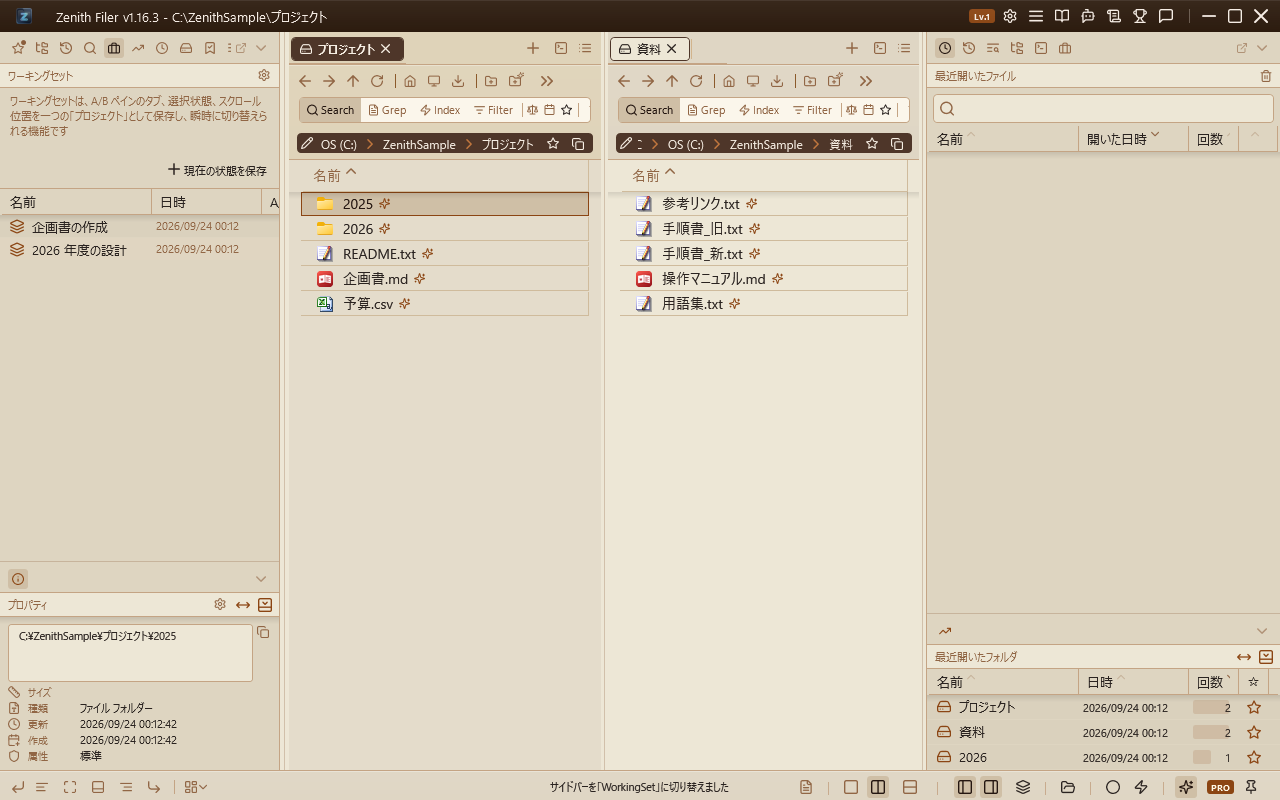
A powerful feature that saves the entire state of the A/B panes (tab paths, locks, view modes, sort settings, selected items, scroll positions) as a "working set," allowing instant switching between "projects."
Display it via the briefcase icon in the nav pane (default: Ctrl+Shift+5). A guide text briefly describing the feature's purpose is shown at the top of the view.
Saving
Click the "Save current state" button at the top of the nav pane and enter a name to save the complete state of both A/B panes.
Data is persisted in settings.json and the entire list is preserved even after app exit and restart.
Preview and Commit (Rollback Feature)
Click a saved set in the list to instantly switch the A/B pane contents to that set's state.
The key feature is that "the original state is not affected until you commit."
- Preview state: Clicking a set enters a temporary "preview" state, and a dedicated footer bar in the brand charcoal black color (
#545B64) appears at the bottom of the screen. - Apply: Press the "✔ Apply this set" button in the footer to commit that state as your current working state.
-
Cancel (Rollback): Press the "✗ Restore original state" button in the footer, or switch to another view (favorites, etc.) in the nav pane, to automatically restore to the state immediately before loading the working set (all tabs, selection positions, scroll state).
This makes context switching extremely smooth, such as "checking Project B materials while working on Project A and quickly returning."
Management
- Overwrite: The save button at the right end of each row replaces that set with the current A/B pane state — the same thing the right-click "Overwrite" entry does.
- Rename: Right-click a set and select "Rename" to edit the set name.
- Delete: Right-click a set and select "Delete," or select the item and press the delete button (trash can icon) to remove the set. You are asked to confirm first, since rebuilding a set means saving it again from scratch.
Sorting
Clicking a column heading (name / date / A-B) sorts by that column. Each click moves it on: sorted → reversed → off, and turning it off returns the list to the order you arranged by dragging. Which way it starts depends on the column: name begins ascending, while date and A-B begin descending so the largest comes first. An arrow on the heading shows which column is in use and which way it runs.
- Sorting changes only what you see. The stored order does not change, so the quick access list on the status bar stays in the order you arranged.
- Dragging to reorder is disabled while a sort is active, so the stored order cannot be rewritten while the view refuses to move. Turn the sort off and you can rearrange freely again.
- Overwriting a set while sorted updates its date but leaves the row where it is. Click the heading again to re-sort.
- The sort lasts for the session only; the next launch starts with it off.
Working from the keyboard
Ctrl+Shift+5 opens working sets with the focus already in the list. Choosing a set, checking it, and getting back to work is one loop that never needs the mouse.
| Key | Action |
|---|---|
↑ ↓ |
Move between sets |
Enter |
Open the selected set as a preview; press again to commit it |
Esc |
Roll back if previewing; otherwise hand focus back to the file list |
Ctrl+S |
Overwrite the selected set with the current state |
F2 |
Rename |
Delete |
Delete (with a confirmation) |
Insert |
Save the current state as a new set |
With "Apply instantly on click" turned on (the gear button), a single Enter goes straight to committing. Committing hands focus back to the file list, so Ctrl+Shift+5 → ↓ → Enter takes you from switching to working again.
The row being previewed is marked, so it is obvious that pressing Enter once more will commit it.
The quick access popup on the status bar (Ctrl+Shift+S) numbers its entries 1 to 9: press the matching digit to apply that set immediately, without arrowing down to it.
Quick Jump
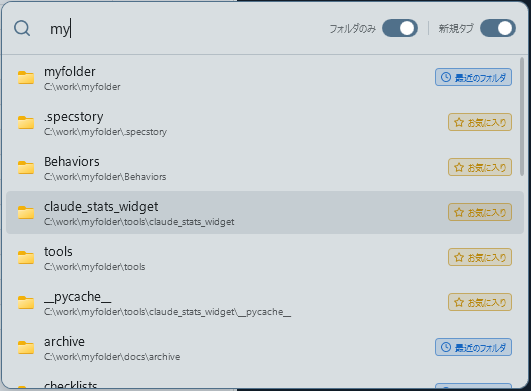
Press Ctrl+P to open the Quick Jump dialog. It incrementally searches across your entire trajectory — favorites, frequently used folders, the full navigation history, tabs you actually opened (ranked by dwell time), and recently opened files — plus every indexed file and folder (dynamic search as you type). Selecting a folder navigates to it; selecting a file opens it in the OS default app.
- Search: As you type, candidates are filtered in real time based on name, path, and description. Scoring is tiered: exact match > prefix match > word-boundary match > substring match, and entering multiple whitespace-separated words narrows results to candidates containing all of them (AND search). Favorites with custom display names are also found by their real folder name, and matching favorites are always included in the results regardless of the display cap.
- Source badge: A badge showing the source ("Favorites," "Frequent," "Recent," "Active Tabs," "Recent Files," "Index," etc.) is displayed on the right side of each candidate, with a source-specific color and icon (Favorites = amber ★, Frequent = green, History = blue, Tabs = purple, Recent Files = slate, Index = teal) so the origin is recognizable at a glance. Favorites and frequent folders appear instantly; history, tabs, and recent files are appended asynchronously right after; and the index is searched dynamically once you type 2+ characters (none of which block startup or interaction).
- Folders only / include files toggle: A slide toggle limits search candidates to folders, or includes files (recent files and indexed files) as well. Defaults to folders only; the state is remembered across sessions.
- Keyboard navigation: Use Up/Down arrows to move between candidates, Enter to confirm, and Escape to close.
- New tab / overwrite toggle: A slide toggle lets you choose between opening the selected folder in a new tab or overwriting the current tab. Defaults to new tab.
- Click outside: Clicking outside the dialog automatically closes it.
- The dialog appears near the mouse cursor position.