Standard File Operations
The following operations are available via right-click menu or keyboard shortcuts.
By default, an app-specific lightweight menu appears instantly, providing quick access to open, copy, delete, rename, favorites, and index search. See "Context Menu" for details.
-
Copy, Cut, Paste: Same as Windows standard (
Ctrl+C,Ctrl+X,Ctrl+V).After the operation, focus remains on the file list. After copy/cut, focus stays on the operated items. After paste, focus moves to the pasted files.
After pasting, the list auto-scrolls to the file for immediate visibility. Focus is maintained even after folder monitoring auto-refresh and is not stolen by the other pane.
-
New folder: Press
Ctrl+Shift+Nto immediately show a rename dialog where you can type the folder name and press OK to create it in the current folder.Folder creation itself runs in the background, so the dialog display and input are not blocked even during high load on network drives. After creation, focus moves to the new folder.
When creating from the Explorer context menu, the rename dialog opens after folder creation as usual.
-
Rename: Press
F2or use the menu. A dedicated rename dialog appears.- File vs folder: For files, the file name and extension are displayed separately and can be edited independently (preventing accidental extension changes). For folders, the entire name is editable.
- Dialog caching: Cached as a lightweight shared window within the app for instant display.
- Template input buttons:
- 3 date buttons (
YYYYMMDD/YYYYMMDD_/_YYYYMMDD): Insert today's date instantly. - 2 context buttons (parent folder name /
YYYYMMDD_MeetingLog_ParentFolderName): Quickly input template names using the current folder name (hidden at drive root).
- 3 date buttons (
- Input history popup: Focusing the text box automatically displays previously used rename values for reuse (up to 100 entries, sorted by most recently used).
- Real-time input validation: Validates the name 0.3 seconds after you stop typing. If the name contains characters that can't be used (
\ / : * ? " < > |) or a reserved name (CON,PRN,NUL, etc.), a warning appears and the OK button is disabled. If a file or folder with the same name already exists in the same folder, a warning also appears, but the OK button remains enabled.
-
Delete: Press
Delete. Items are sent to the Recycle Bin. If "Show confirmation dialog when deleting files" is on in the Control Deck (the default), a confirmation dialog appears first. When something would be deleted permanently instead (files on a network, or files too large for the Recycle Bin), Windows warns you regardless of the setting. -
Create shortcut: Creates a shortcut to the selected item in the current folder.
-
Show properties: Displays the standard Windows properties dialog.
-
Open in Explorer: Opens the current folder in Windows Explorer.
-
Process display on file operation error: When a rename, delete, copy, move, or drag & drop operation fails because another application is using the file, the error message shows the name of the process locking the file (e.g., "EXCEL is using this file, so the operation could not be completed").
The Windows Restart Manager API is used to identify the process, making it immediately clear which application needs to release the file. Appropriate messages are also shown for insufficient access permissions or disk space.
Rubber Band Selection
You can select a rectangle area by dragging on empty space in both detail and icon views.
- Press and hold the left mouse button on an empty area and drag to draw a selection rectangle adorner; items inside are selected.
- Where to start dragging: In detail view, start from the narrow strip along the left edge of the list (it runs down from the left of the column headers). In icon view, start from the gaps between cards. You don't have to start on top of a row or card, even when you only want to pick two items in the middle of the list. Right-clicking this empty space opens the folder background menu.
- Ctrl + Drag: Add-select while preserving the existing selection (toggle behavior).
- Shift + Drag: Range-extend selection.
- Auto-scroll at edges: When the mouse reaches a list edge, the list auto-scrolls while the rectangle selection continues.
- Rubber band is inactive during keyboard operation mode (requires mouse movement to resume).
File Conflict Dialog (same-name handling)
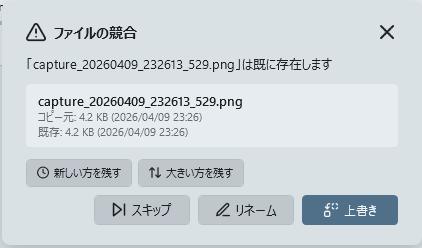
When a same-name file exists during copy/move, a dedicated conflict dialog appears, offering 5 actions.
| Action | Behavior |
|---|---|
| Overwrite | Replace with the source |
| Skip | Do nothing, move to next item |
| Rename | Auto-append (1) style suffix, keep both |
| Keep Newer | Prefer the one with more recent LastWriteTime |
| Keep Larger | Prefer the one with larger file size |
- "Apply to all" checkbox ON: perform the same action on all remaining conflicts without showing the dialog again.
- Cancel via
Escaborts remaining items. Completed / skipped counts are summarized on the GlowBar and status bar.