File Panes (Pane A / Pane B)
The main area consists of two independent file display regions (panes) arranged side by side. Each pane supports tabbed browsing.
-
Tab feature: Open multiple folders as tabs and switch between them while working.
-
Pane A (left) / Pane B (right): Each operates independently, and you switch focus by clicking or pressing
Tab.The focused pane (A/B only; the nav pane is excluded) has a slightly darker background with black text.
The upper menus (tab header, action row, address bar) are displayed in a slightly darker shade than the list area, making it easy to identify which pane is active.
-
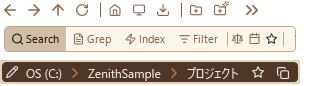
Pane header: the header at the top of each pane has two rows, the action row (buttons and the search bar) and the address bar row. When the pane is narrow (under 1000) or when Display → Search Bar Second Row is on with two side-by-side panes, the search bar moves down from the action row to a row of its own, making three rows (as in the image above). This gives the search bar the full width so the search history list is not cut off.
- Row 1 (action row): Organized into 5 groups separated by dividers.
- Navigation: Back / Forward / Up
- Shortcuts: Home / Desktop / Downloads
- Create & Edit: New Folder / Import Folder
- Manage: Refresh / Open in Explorer
- View Settings: Adaptive Columns / Folders First
- Customization (Pro): The icons in this action row can be reordered by drag-and-drop and shown or hidden per button from Settings → Toolbar. "Add separator" lets you insert dividers anywhere to group buttons your way (separators can also be removed). Changes apply instantly to both panes and persist across restarts. "Reset to default" restores the original layout at any time (at least one button always remains). In the free version the layout is fixed at the default and the customization screen is shown locked.
- Buttons that do not fit ("≫"): When a pane is too narrow for all the icons, whatever does not fit is collected under a "≫" button. Press it to see them as a list with icon, name and assigned key, ready to run. The check runs per pane, so a "≫" appears only on the side that is narrow. Widen the splitter and it disappears again. Buttons you hid stay hidden, including inside the "≫" list. If the search box itself is what feels cramped, consider Display → Search Bar Second Row as well.
- The Home button navigates to the folder set in app settings. If not configured, Pane A goes to Desktop and Pane B goes to Downloads.
- On the far right (while the search bar is on the action row) is a search box. Type a keyword and press Enter to execute the search (results appear in a new tab or the current tab depending on your search behavior settings). Inside the search box on the right, the hit count is displayed in real time.
- While searching, the list column layout switches to a dedicated set (Name, Location, Path, Date Modified, Size). Click headers to sort, drag header borders to adjust column widths, and double-click to AutoFit (manual adjustment disables window-width scaling). The Path column is optimized for width and prioritizes showing the end of the path.
- Row 2 (address bar row): Shows where you are as a breadcrumb, and lets you go somewhere by typing a path. See Address Bar and Breadcrumb for how to use it and how it works.
- During a search, the address bar is replaced by a filter bar that lets you narrow search results by file type.
-
Search history dropdown: When you focus the search box, past search keywords (up to 100) are displayed in a dropdown.
- Icons: A magnifying glass icon indicates normal search history; a lightning bolt icon indicates index search history.
- Separate entries: The same keyword is shown as separate entries for normal vs index search. Entries with different size/date filter conditions are also recorded separately.
- Restore: Selecting an item (click or Enter) automatically switches back to the search mode (normal/index) and filter conditions recorded at the time, and re-executes the search.
- Keyboard operation: While the history is displayed, press the down arrow to move focus to the list, then use up/down arrows to navigate and Enter or click to select. The up arrow while the search box is focused does not move to the history.
- Pressing Enter to execute a search automatically closes the history dropdown.
-
Search filter bar: When a search is executed, the row-2 address bar is replaced by a filter bar.
You can narrow results by file type using checkboxes for Folders, Excel, Word, PPT, PDF, TXT, EXE, BAT, JSON, Images, and Others. "Select All" shows all types; "Deselect All" hides all. Files of unchecked types are not shown in the search results.
Filter selection state is saved to
settings.jsonand automatically restored on the next search and after app restart. Clear search conditions with the X button on the right of the search bar or the Esc key. By default Esc is two-step (first press clears the text, second clears the size/date filters and scope); turning on Settings → Search → "One-press full reset with Esc" clears everything in a single press.
- Row 1 (action row): Organized into 5 groups separated by dividers.
-
Horizontal scrolling: In areas that can scroll horizontally (file list, breadcrumb bar), use the mouse wheel's left/right tilt.
-
Overlay scrollbar: The vertical scrollbar overlays the content (e.g., the Size column), so the file name column width remains stable even when the scrollbar appears. The thumb has a minimum size, so it never collapses into something you cannot grab, however many thousands of files a folder holds — the floor applies to every scrollbar in the app.
-
Top-bottom dual-pane split: The layout toggle button on the status bar supports a top-bottom split in addition to side-by-side. You can also switch to single-pane mode (shortcuts:
Ctrl+1single,Ctrl+2side-by-side,Ctrl+Shift+2top-bottom).