Right-Click Menu
The menu that opens when you right-click in the file list. There are two kinds: the app's own lightweight menu and the standard Windows menu (Explorer-compatible). From the app's own menu you can also reach the items Windows and cloud apps add.
What you can do
| To do this | Do this |
|---|---|
| Pick a common action right away | Right-click (the app's own menu) |
| Show the standard Windows menu | Shift + right-click |
| Open the menu from the keyboard | The Menu (Application) key, or Shift + F10 |
| Use items that 7-Zip, VS Code and others add | "OS standard menu ▶" in the app's own menu |
| Get Box or SharePoint links | "Copy share link with path" and "Cloud Menu ▶" in the app's own menu |
| Sort or create new items | Right-click an empty part of the list |
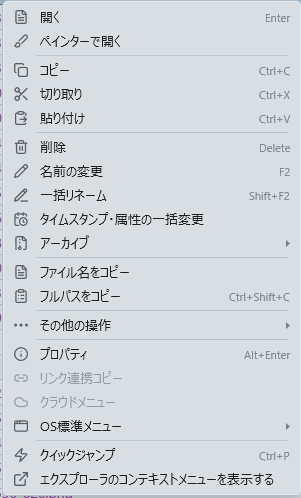
The app's own menu shows items to match the kind and number of things you selected. Actions with a key assigned show it on the right (for example "Copy Ctrl+C"). If you change a key in Settings → Shortcut Keys, the menu follows.
How to use it
Choosing between the two menus
- The app's own menu (the default, recommended): a lightweight menu of the common actions that opens the instant you right-click.
- The Explorer-compatible menu: the standard Windows right-click menu, as is. Items that shell extensions (such as 7-Zip) add to File Explorer appear too.
Choose the one you use normally in General → Context Menu. Even with the app's own menu selected, you can bring up the Explorer-compatible menu for the moment:
- Hold
Shiftwhile right-clicking (or while pressing the Menu key) - Choose "Show Explorer context menu" at the bottom of the app's own menu
The Explorer-compatible menu can only be shown for items in one folder (that is how the Windows menu works). If your selection spans several folders, as it can in search results, you are told so and the app's own menu is shown instead.
From the keyboard: the Menu key (changeable in Settings → Shortcut Keys) or Shift + F10 opens the menu at the bottom-left of the selected row, or at the top-left of the list if nothing is selected.
Right-clicking files and folders
The menu is divided by separators into the groups below. Common actions are on the first level; less frequent ones are under "More actions ▶".
| Group | Item | Shown when |
|---|---|---|
| Open | Open (Enter) |
Always (not with several items selected) |
| Open in new tab / Open in other pane | One folder is selected | |
| Open in text editor | Only text-like files are selected | |
| Compare Text (in A pane) | Two text-like files are selected | |
| Compare Text (A ↔ B pane) | One text-like file is selected, and one text-like file is selected in the other pane too | |
| Open in painter | Only images are selected | |
| Clipboard | Copy (Ctrl+C), Cut (Ctrl+X), Paste (Ctrl+V) |
Always |
| Edit | Delete (Delete) |
Always |
Rename (F2) |
One item is selected | |
Batch Rename (Shift+F2), Batch timestamp and attributes |
Always | |
| Change permissions | Only items on a server (FTP / SFTP) are selected | |
| Archive ▶ | Always (see "Archive ▶" below) | |
| Names and paths | Copy file name / Copy full path (Ctrl+Shift+C) |
Always; one per line for several items |
| More actions ▶ | (see the table below) | |
| System | Properties (Alt+Enter) |
Always; with several items, shows combined properties |
| Copy share link with path / Cloud Menu ▶ | Always; disabled outside Box, SharePoint and OneDrive (work or school) folders | |
| OS standard menu ▶ | Always (see "OS standard menu ▶" below) | |
| Go | Quick Jump (Ctrl+P) / Show Explorer context menu |
Always |
Where Paste goes: right-click a single folder and choose Paste, and the items go into that folder (as in Explorer). Right-clicking a file or several items, and Ctrl+V, paste into the folder you are viewing. If the cut items are already in the destination, nothing is moved; you get a notice and the items stay cut.
"More actions ▶" contains:
| Item | Shown when |
|---|---|
| Copy BOX share path | Inside a Box folder |
Add to favorites (Ctrl+D) / Remove from favorites |
One item is selected |
| Create shortcut | Always |
| Compute and verify hash | Files are selected |
| Search this folder with index search / Export folder tree to CSV / to Excel / Set this folder as A or B Pane home | One folder is selected |
| Convert to PDF and save to same folder | One convertible file is selected |
| Convert to PDF, merge and save to same folder | Several files, all convertible, are selected |
| Send selection to Claude / Insert selection paths into the terminal | Always |
Features that have reached their limit in the free version show a padlock and "(limit reached)", and cannot be clicked.
Right-clicking an empty part of the list
Right-clicking an empty part of the list shows a menu for the folder you are looking at.
- Sort by ▶: name, date modified, size or extension, ascending or descending, and "Show folders first". The icon views have no column headers, so this is where you sort them (the toolbar's sort button opens the same menu).
- Paste
- Copy full path
- New folder (
Ctrl+Shift+N) / New text file / New ▶: you name the new item right away, and cancelling deletes it. "New ▶" lists the new-file templates registered in Windows, such as Word and Excel (they are loaded in the background after startup, so they may be missing just after launch). - More actions ▶: Copy folder listing (names) / (full paths), Copy BOX share path (Box only), Search this folder with index search, Export folder tree to CSV / to Excel
- Properties / Copy share link with path / Cloud Menu ▶ / OS standard menu ▶
- Quick Jump / Show Explorer context menu
"Copy folder listing" copies the list as you see it (with type filters and sorting applied, or the search results in a search tab), one item per line.
Archive ▶
If everything you selected is an archive, extract items are listed; otherwise, compress items.
- Extract: Extract... (choose where) / Extract here / Extract to "name\" (with several: Extract each to its own folder) / Extract to the other pane / Test archive
- Compress: Compress... (choose format and place) / Compress to "name.zip" / Compress each to its own ZIP (with several) / Create ZIP in the other pane
See Archives for details.
The main items explained
- Open in text editor: opens
.txt,.md,.json,.htmland similar files in the editor set in Display → Text editor (VS Code, Notepad++, Sakura Editor, Notepad and so on). With none set, the app associated with.txtin Windows is used. Extensions that are not included by default, such as.csvor.dat, can be added under "Additional extensions" in Display → Text editor. - Compare Text: shows two text files side by side, with added lines in green and removed lines in red. A minimap on the left shows where the differences are in the whole file; click it to jump there. Files up to 5 MB are supported (see Text Comparison).
- Open in painter: opens
.png,.jpg,.bmpand similar files in the app Windows uses for editing images. - Convert to PDF: images (
.jpg,.jpeg,.png,.bmp,.gif) and Office documents (.docx,.doc,.docm,.xlsx,.xls,.xlsm,.pptx,.ppt,.pptm) are converted to PDF and saved in the same folder as "original name.pdf". Merged output is named "Combined_timestamp.pdf". Converting Office documents requires Microsoft Office. - Export folder tree to CSV / to Excel: reads every file, subfolders included, and produces a table of number, file name, relative folder path, date modified and size (the CSV is UTF-8 with BOM; files without an extension are left out). Paths are relative to the starting folder (
.\Sub\), so the same table works even where each user's path differs, as in Box. In Excel, the "Open folder" column is a relative link, and the header row is frozen with AutoFilter. - Set this folder as A or B Pane home: it becomes that pane's Home button target and where new tabs open.
OS standard menu ▶
The right-click items that apps register with Windows, such as Visual Studio, VS Code, Git, 7-Zip, Sakura Editor, Everything and Microsoft Defender, can be used right from the app's own menu, with their icons. Nested menus such as 7-Zip's open as they are.
- Items the app's own menu already has (Open, Copy, Delete, Rename, Properties, Create shortcut and so on) are left out. Box, OneDrive and SharePoint items appear under "Cloud Menu ▶" instead.
- Items registered the new Windows 11 way appear too. Apps can register right-click items the classic way or the new Windows 11 way, and the new way is normally shown only by File Explorer. Both are read and merged into one list, and an app registered both ways appears once.
- Which items appear depends on the extension of what you selected, whether it is a folder, and whether you right-clicked empty space (the same rules File Explorer uses).
Cloud menu (Box, SharePoint, OneDrive)
Inside folders synced with Box Drive or SharePoint / OneDrive (work or school), two items can be used (elsewhere they are dimmed and cannot be clicked):
- Cloud Menu ▶ calls the items cloud apps add to the right-click menu, such as "Share with Box" or "Version history".
-
Copy share link with path fetches the share link and puts it on the clipboard as both HTML and plain text. Pasted into Teams, Outlook, Slack and the like, each item name becomes a link; in Notepad and similar editors it reads "item name ( URL )". It has three layers: the parent folder's Box path, the parent folder's share URL, then each item name with its own link. Used on empty space, every item in the folder is listed. When it is done, "Box share info copied" appears and the pane flashes green.
Since Box Drive v2.52, copying a link also opens Box's share window. Box has no setting to turn that off, so the app closes the window that this action opened (Box windows you opened yourself are left alone). If no share URL could be obtained you see "Box path copied only (share link unavailable)", and if none arrived within 20 seconds, "Could not get share link".
-
Box share link as two lines: in a Box folder,
Shift+ right-click to open the Explorer-compatible menu and choose "Share" → "Copy shared link". For the next 20 seconds the clipboard is watched, and as soon as Box writes the URL it is replaced with "line 1: Box path, line 2: share URL". When that happens the pane flashes green and the status bar shows "Box path and URL combined".
How it works
Why the app's own menu opens instantly
- The app's own menu is built only from what the app already knows (the kind, number and location of what you selected). Nothing is asked of Windows, so there is no wait. The time it took is logged as
[ContextMenu] shown in <ms>ms. - Items that have to be asked of Windows or other apps are fetched only when you hover over their submenu. With security software or cloud sync slowing things down, one fetch has been measured at 9.8 seconds, so the menu no longer fetches ahead on every right-click.
- "OS standard menu ▶" fetches the classic and the Windows 11 items in parallel, so the wait is not doubled. If they are not ready within 6 seconds, "Still loading…" appears and it waits up to 30 seconds more. If there really are no items, "No items available" is shown.
- "Cloud Menu ▶" waits up to 3 seconds when nothing is remembered yet.
- Fetched items are remembered for 10 minutes (up to 20 entries), so opening the menu again on the same place and the same kind of file shows them at once. Empty results are not remembered, so the next open tries again.
How the Explorer-compatible menu is shown
- The standard Windows menu is created by Windows on a dedicated thread. That thread runs aware of each monitor's scale (DPI), so the menu is drawn at the right size on every screen.
- The menu is built for the folder containing the first selected item.
- "Rename", "Delete" and "Properties" are handled by the app rather than Windows, so they behave just as they do from the app's own menu (the delete confirmation, the name input and so on).
- Near the right or bottom edge of the screen, the menu shifts left or up to stay on screen.
Related
- Keyboard Shortcut Reference — change the keys shown in the menu
- Archives — extracting and compressing
- Text Comparison — compare two files side by side
- Batch Rename — rename many items at once
- Standard File Operations — copy, move and delete