Search Presets
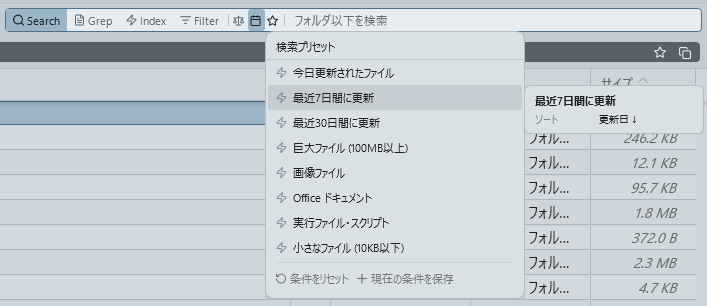
Click the star icon in the search bar to open the search preset popup. The popup has two sections: Built-in Presets (upper) and User-Created Presets (lower), visually distinguished by dividers and labels.
Eight built-in presets are included: "Updated Today", "7 Days", "30 Days", "Large Files", "Images", "Office Documents", "Executables", and "Small Files"; these cannot be deleted. Date-based built-in presets dynamically calculate dates at application time, always searching with the latest date range.
User-created presets let you save current search conditions with a name and restore them with one click. Presets persist after app restart.
Saved Conditions
The following search conditions are saved in a preset.
| Item | Content |
|---|---|
| Mode | Normal search or Index search |
| Keyword | Search text |
| Size | Min / Max size filter values |
| Date | Start / End date filter values |
| Extension filter | Enabled state for each type: Folders, Excel, Word, PPT, PDF, TXT, EXE, BAT, JSON, Images, Others |
| Sort | Sort column (Name / Date Modified / Size / Extension) and direction (Ascending / Descending) |
| Scope | Target folder selection state for index search |
Saving a Preset
- Set search conditions, then click the star icon to open the popup
- Click the "Save current conditions" button at the bottom of the popup
- A preset name input dialog appears
- Enter a name and confirm; a confirmation dialog shows the conditions to be saved (mode, keyword, size, date, filter, scope, sort)
- Click "OK" to save the preset; a toast notification confirms the save
Presets are automatically categorized as normal search or index search. The popup only shows presets matching the current mode.
Applying a Preset
Click a preset in the list to restore all saved conditions at once and automatically execute the search. On application, size and date filter icon states (underlines, etc.) are immediately synchronized.
Preset Preview
Hover over a preset in the list to view its saved conditions in a tooltip. Displayed items include keyword, size, date, filter, scope, and sort; only items with values are shown. Size is displayed in 1 GB format and dates in yyyy/MM/dd format.
Deleting a Preset
Hover over a user-created preset to reveal an X button on the right. Clicking it immediately deletes without confirmation, and a toast notification confirms deletion. Built-in presets cannot be deleted.
Condition Reset
Click the "Reset conditions" button on the lower left of the popup to reset all current search conditions to their initial state at once.
| Item | State after reset |
|---|---|
| Keyword | Cleared to empty |
| Size filter | Min / Max both cleared |
| Date filter | Start / End both cleared |
| Sort | Date Modified descending (default) |
| Extension filter | All types re-enabled |
| Search mode | Not changed (maintained) |
| Scope | Not changed (maintained) |
A toast notification "Reset all search conditions" is displayed upon completion.